![709081_APP-Logo White_042920-2.png]](https://knowledge.agencyperformancepartners.com/hs-fs/hubfs/709081_APP-Logo%20White_042920-2.png?width=50&height=50&name=709081_APP-Logo%20White_042920-2.png)
✅ Desired Outcome
-
Bitly links are properly created, branded (if applicable), and trackable
-
QR codes generate correctly and link to the intended destination
-
Links and QR codes are consistent with marketing campaigns
-
Links are easy to share and scan across platforms
-
Tracking analytics are functional for performance monitoring
🚫 Unacceptable Actions
-
Using incorrect URLs when creating Bitly links or QR codes
-
Generating QR codes without testing the scan functionality
-
Sharing unverified or broken links
-
Forgetting to label or document links for campaigns
-
Overwriting existing links without tracking history
Step-by-Step Process: Creating a Bitly Link
-
Open a web browser and go to Bitly (https://bitly.com).
-
Log in to your Bitly account.
-
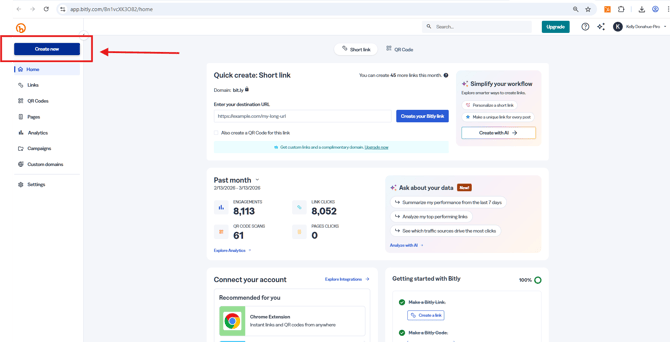
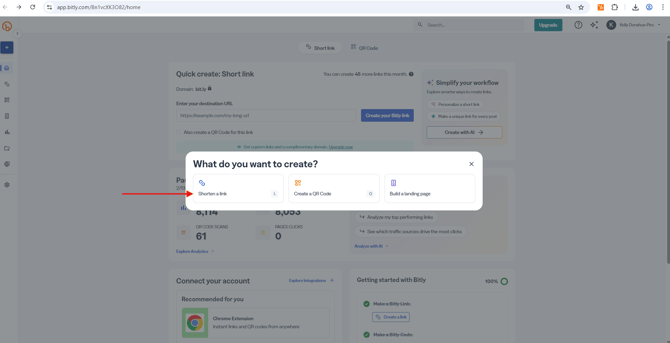
Click Create (usually a button on the top right).
-
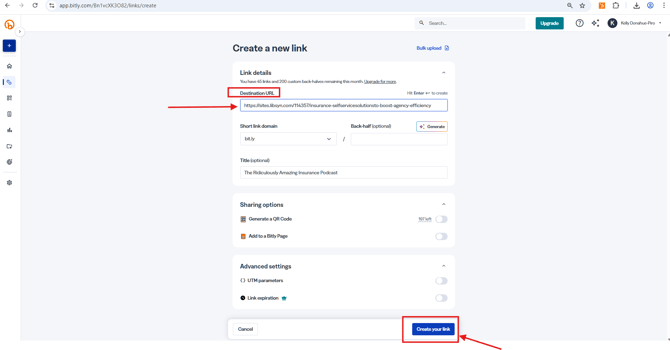
Paste the original URL you want to shorten.
-
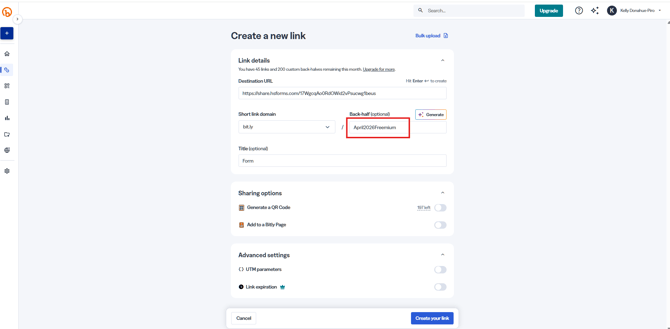
Optional: Customize the back-half of the link to make it memorable (e.g., bit.ly/April2026Freemium).
-
Click Copy to save the Bitly link.
-
Test the link by opening it in a new browser tab to ensure it redirects correctly.
-
Document the link in your Marketing Calendar or tracking sheet.
Step-by-Step Process: Creating a QR Code in Bitly
-
Open a web browser and go to a QR code generator (https://bitly.com).
-
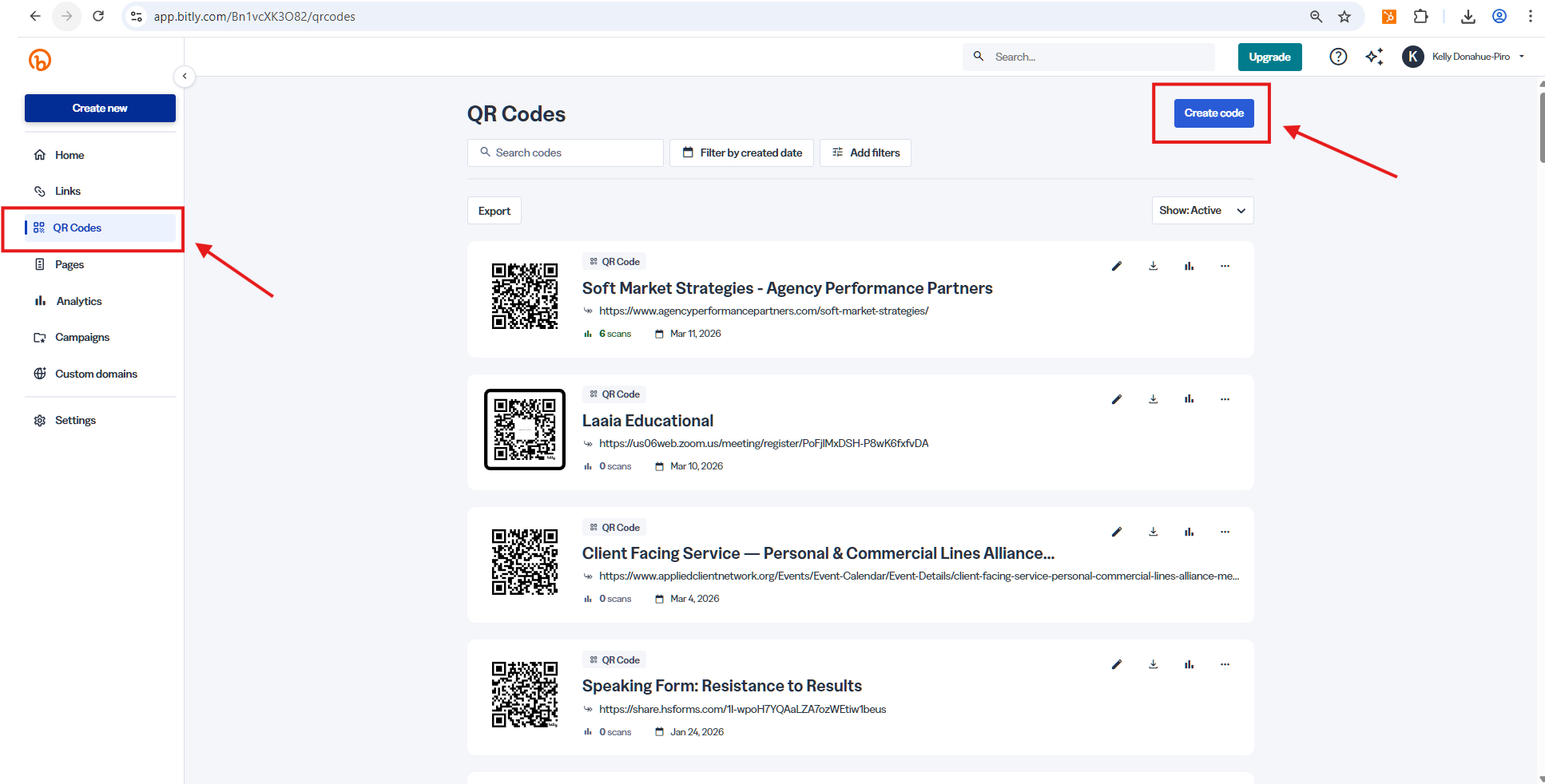
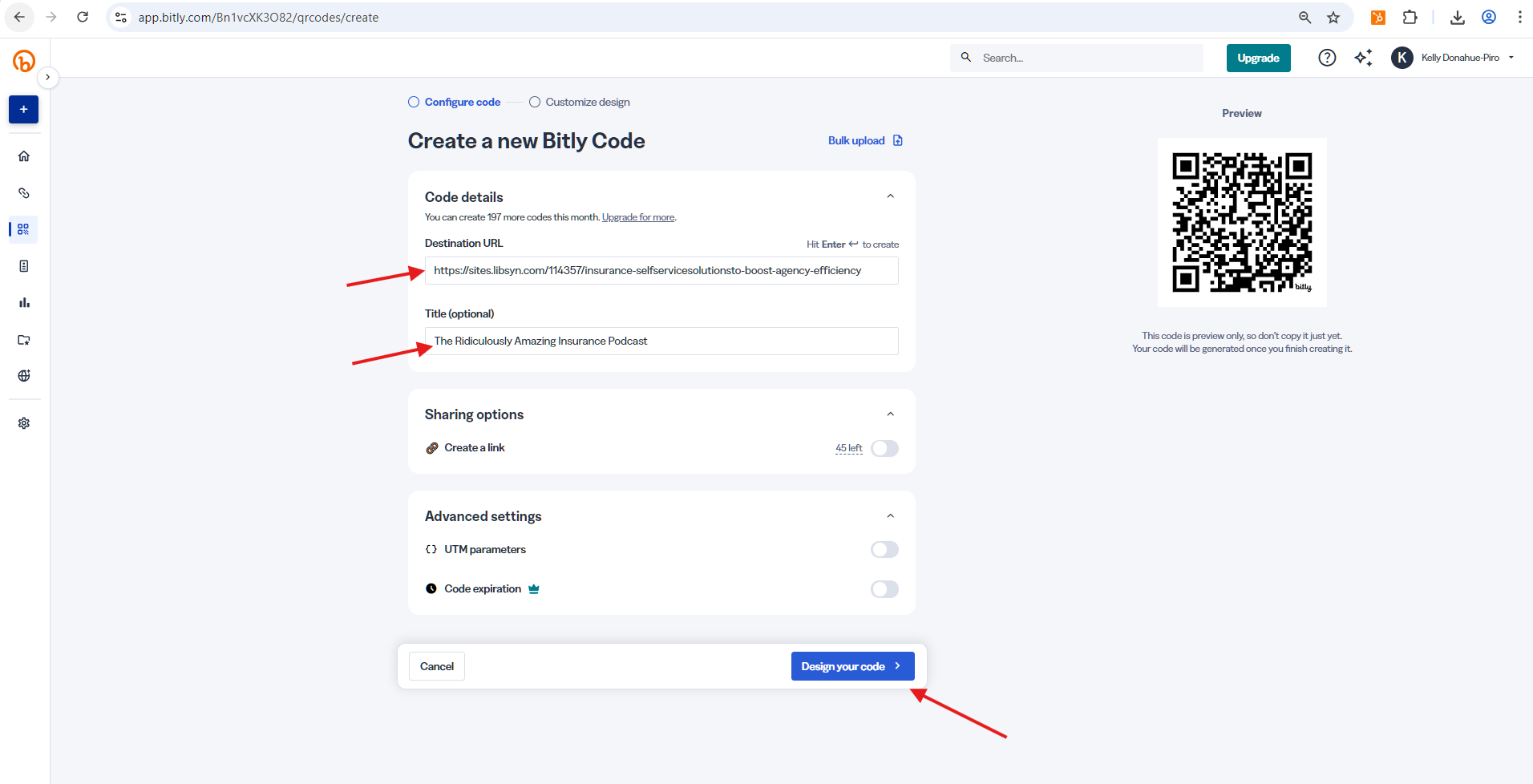
Navigate to the Bitly link you want to generate a QR code for.
-
Click the “QR Code” icon next to the Bitly link
-
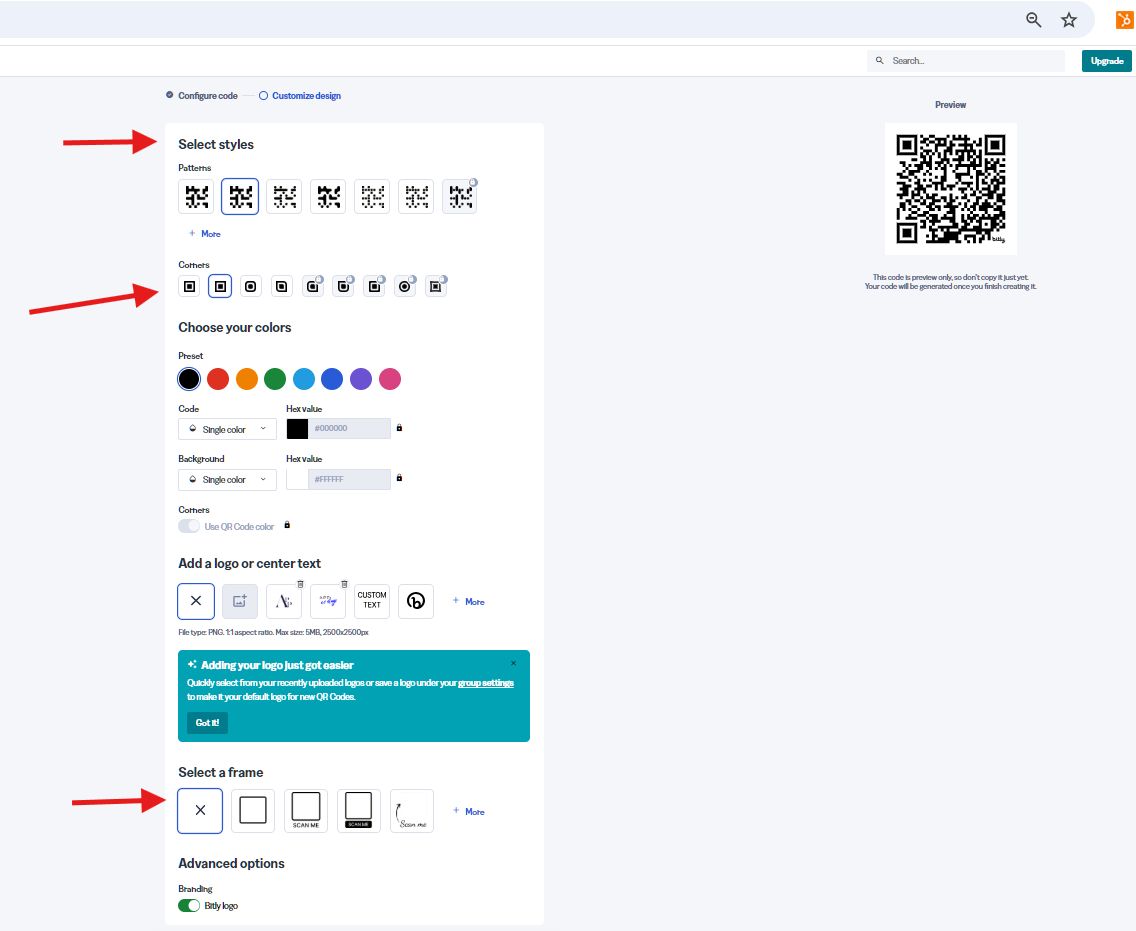
Customize the QR code if needed (color, style, or logo).
-
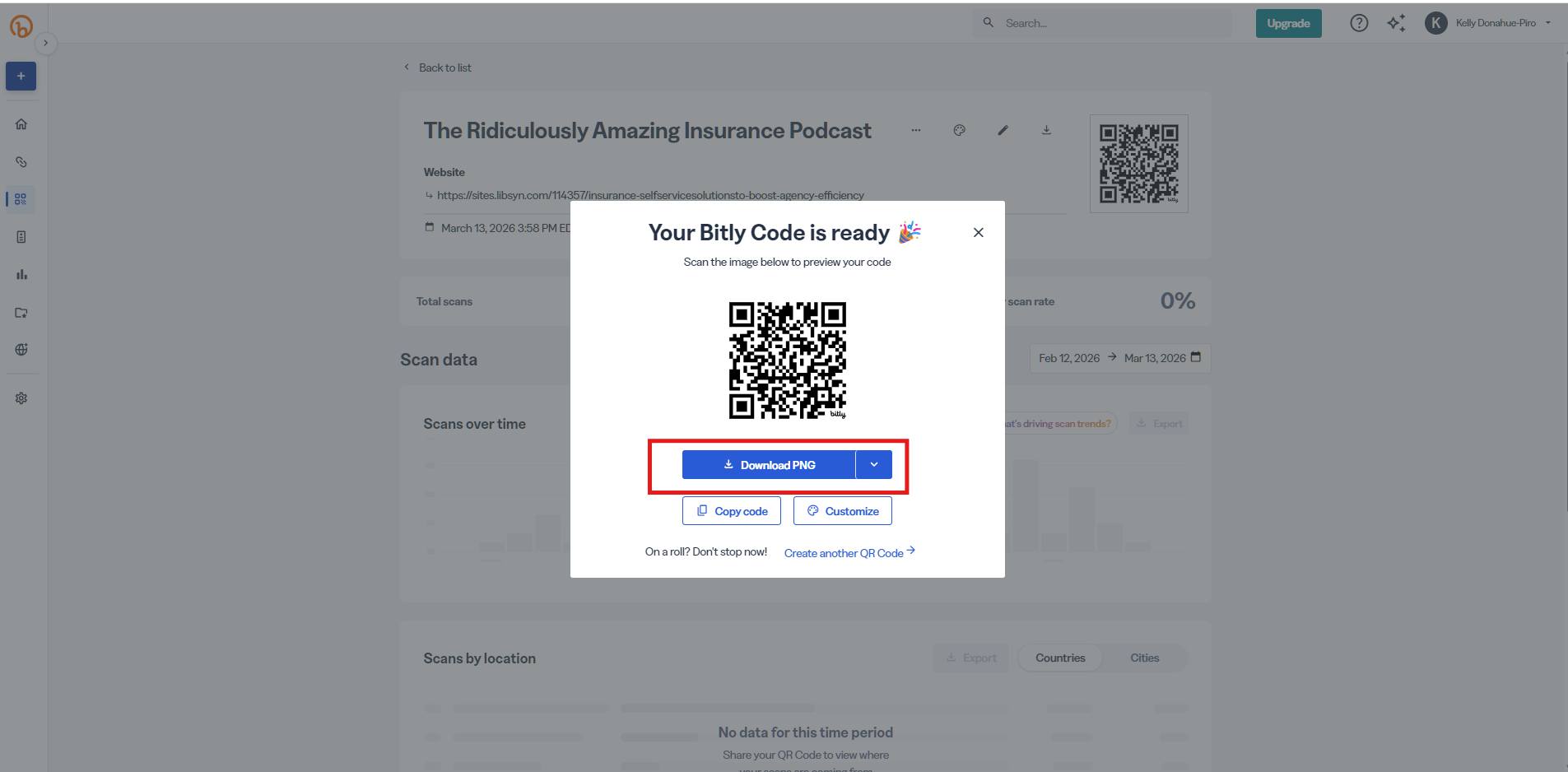
Click Download to save the QR code in your preferred format (PNG, SVG, PDF).
-
Test the QR code by scanning it with a mobile device to ensure it redirects to the correct URL.
-
Save the QR code file
-
Document the QR code link and usage in your Marketing Calendar or campaign sheet if necessary.
✅ Tip: Always generate the QR code from the Bitly link, to ensure click and scan tracking is consolidated in one place.