![709081_APP-Logo White_042920-2.png]](https://knowledge.agencyperformancepartners.com/hs-fs/hubfs/709081_APP-Logo%20White_042920-2.png?width=50&height=50&name=709081_APP-Logo%20White_042920-2.png)
✅ Desired Outcome
-
Banner and feature image are created in Canva with correct branding
-
Titles are accurately reflected from the Marketing Calendar
-
Banner includes appropriate team member images (if applicable)
-
Feature image is clean and text-focused
-
Images are properly uploaded to WordPress
-
Blog post is ready for scheduling after image upload
🚫 Unacceptable Actions
-
Using incorrect or outdated blog titles
-
Adding wrong or missing team member images on banners
-
Using colors outside of the approved palette (grey, pink, yellow, teal)
-
Uploading incorrect image types (banner vs feature image mismatch)
-
Skipping image upload before scheduling the blog
-
Poor image quality or improperly formatted visuals
Step-by-Step Process
1️⃣ Create Creatives in Canva
-
Open Canva (Project).
-
Create designs for the month you are currently working on.
2️⃣ Create Blog Banner
-
In Canva, create a Banner design.
-
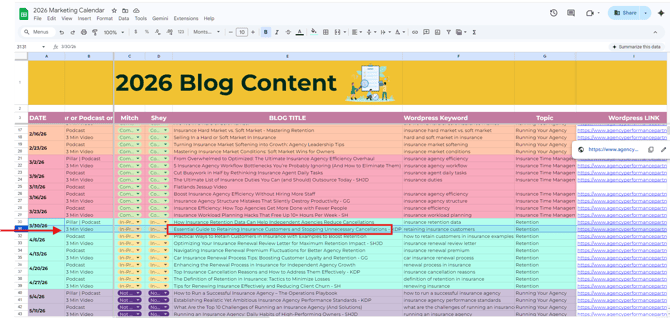
Go to your Marketing Calendar and copy the Podcast / 3-Minute Video title.
-
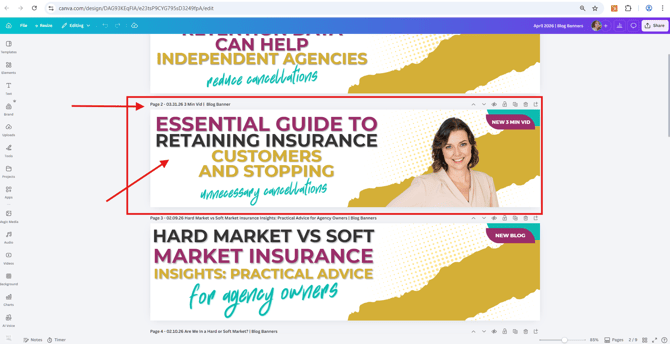
Paste the title into the banner design.
-
Follow branding guidelines:
-
Use ONLY these colors: Grey, Pink, Yellow, Teal
-
-
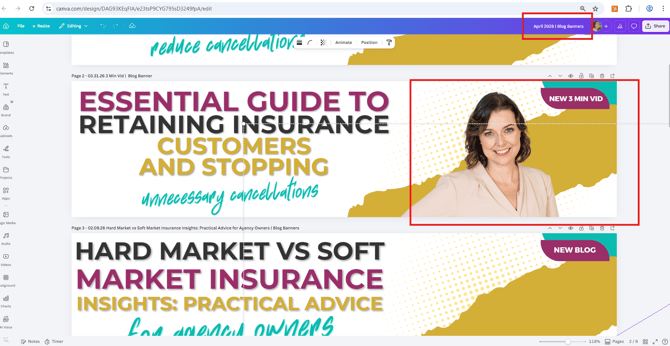
Add the photo(s) of APP team member(s) featured in the podcast/video.
-
Ensure layout is clean, readable, and aligned with branding.
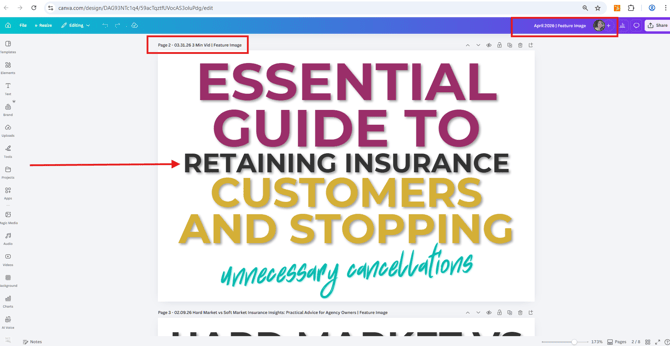
3️⃣ Create Feature Image
-
In Canva, create a Feature Image design.
-
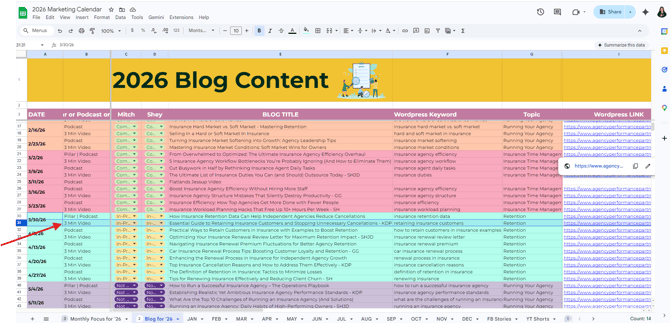
Copy the same title from the Marketing Calendar.
-
Add the title to the design.
-
Do NOT add any team member photos.
-
Keep the design simple and text-focused.
4️⃣ Download Images
-
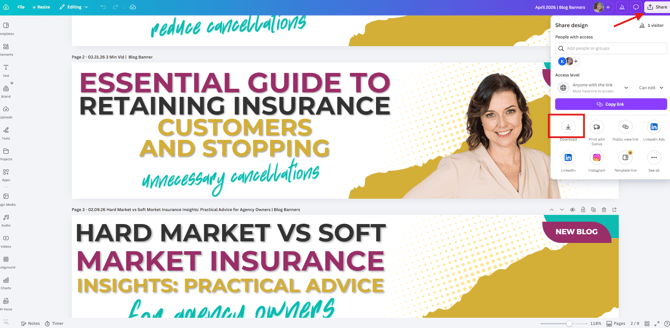
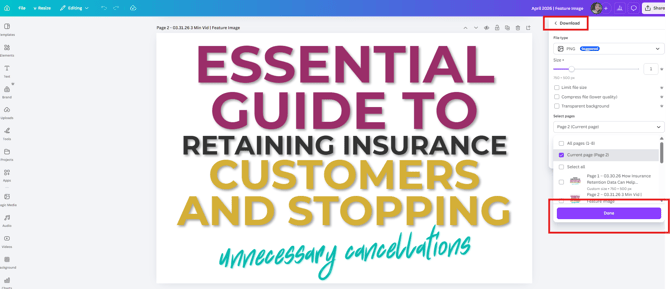
Download both designs from Canva:
-
Blog Banner
-
Feature Image
-
-
Ensure files are high quality and properly named.
5️⃣ Upload Banner to WordPress
-
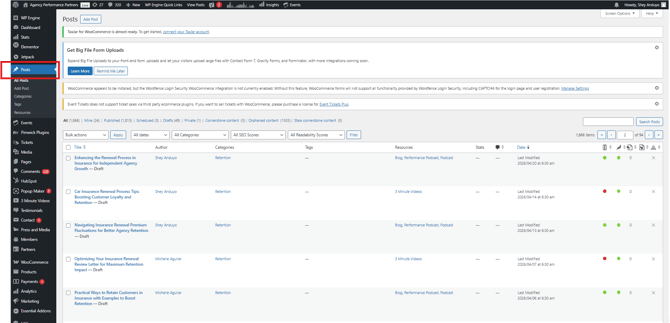
Open WordPress.
-
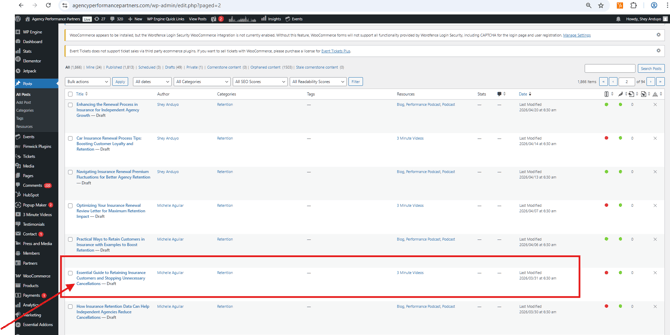
Go to Posts.
-
Select the draft post you are working on.
-
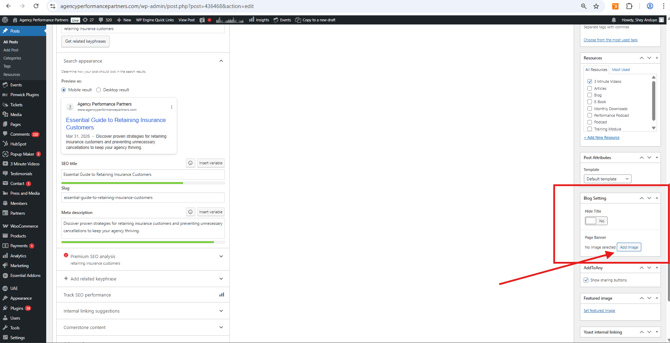
Navigate to Blog Settings.
-
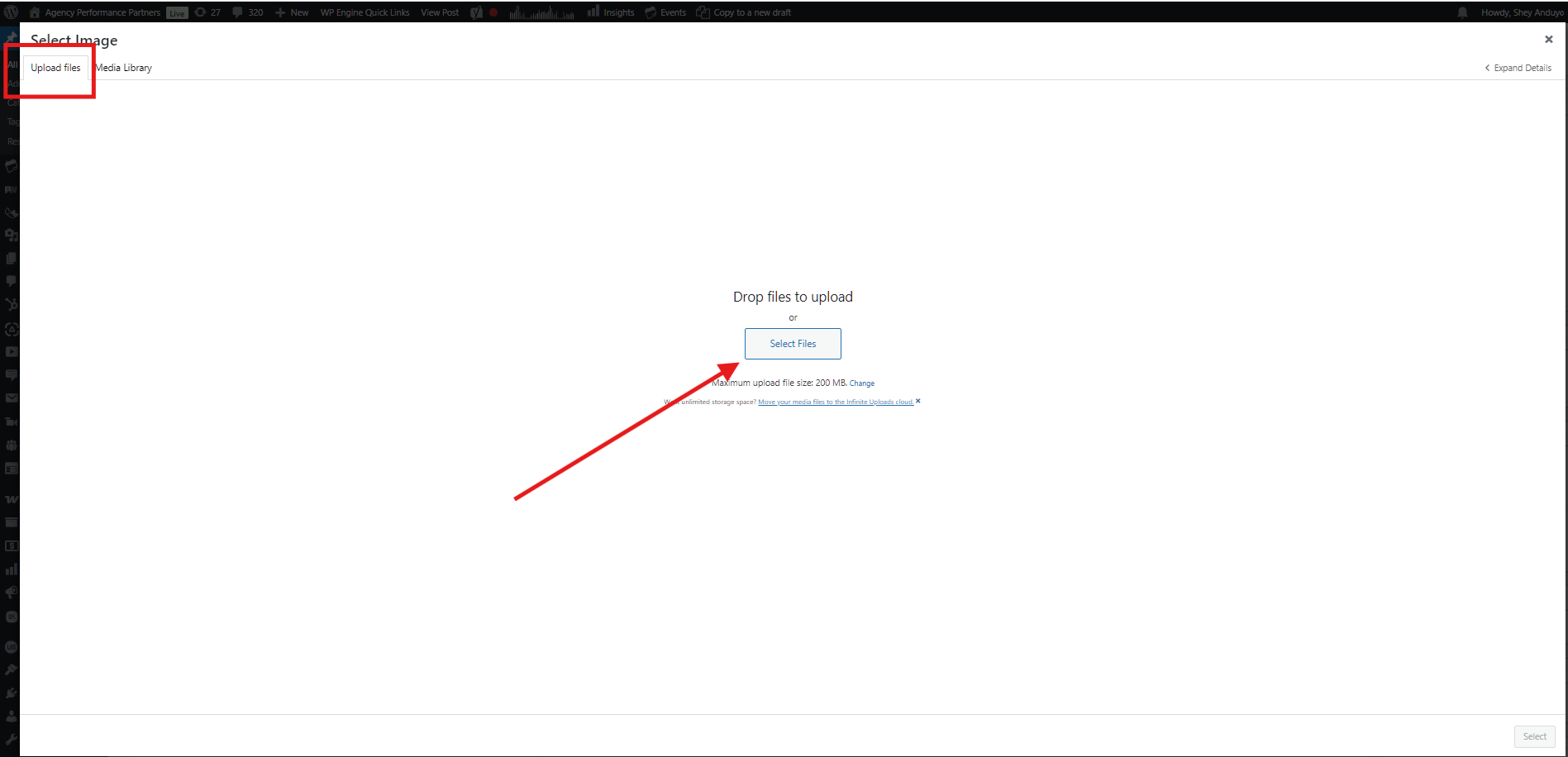
Click Add Image and upload the Banner.
6️⃣ Upload Feature Image
-
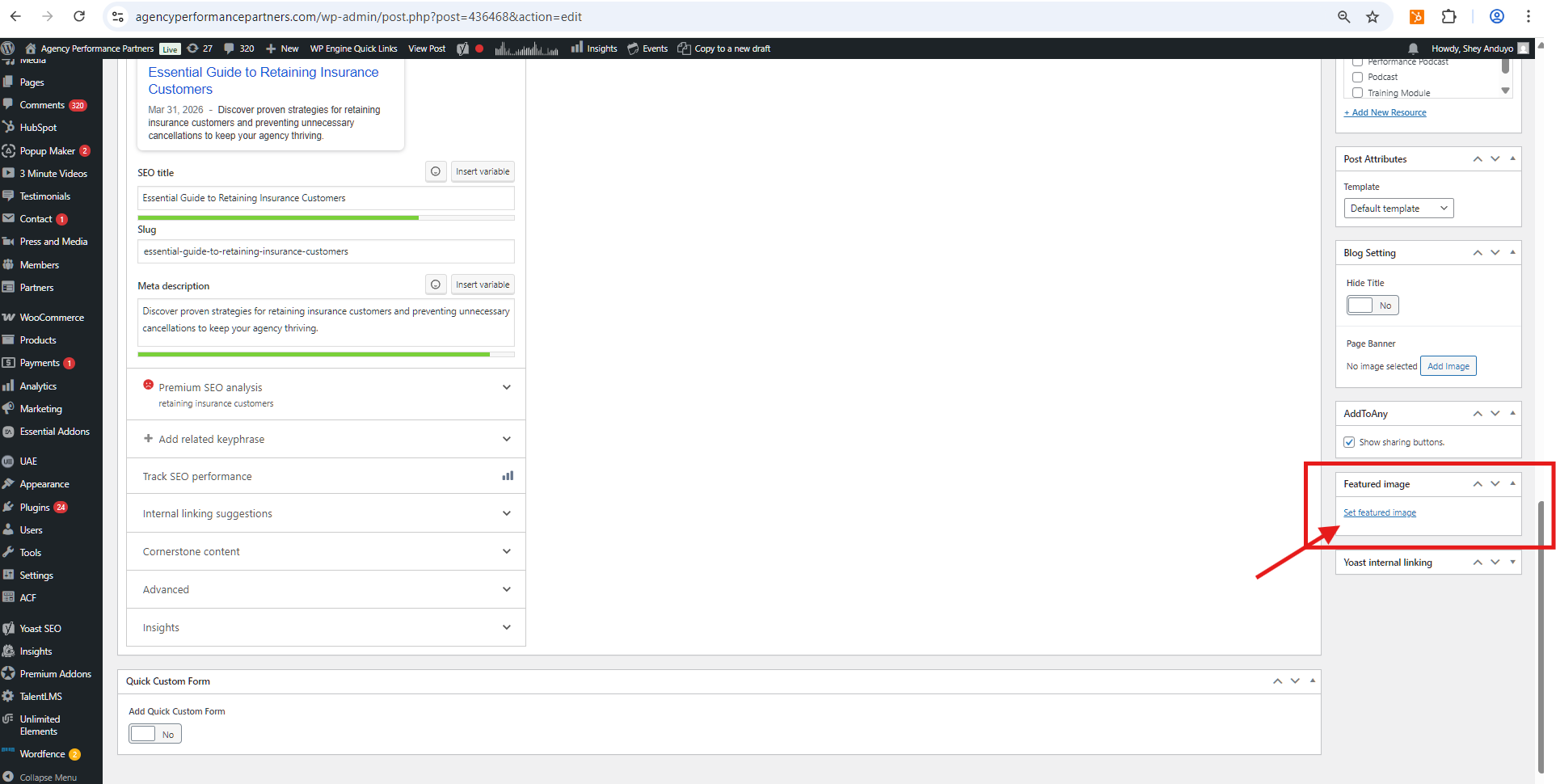
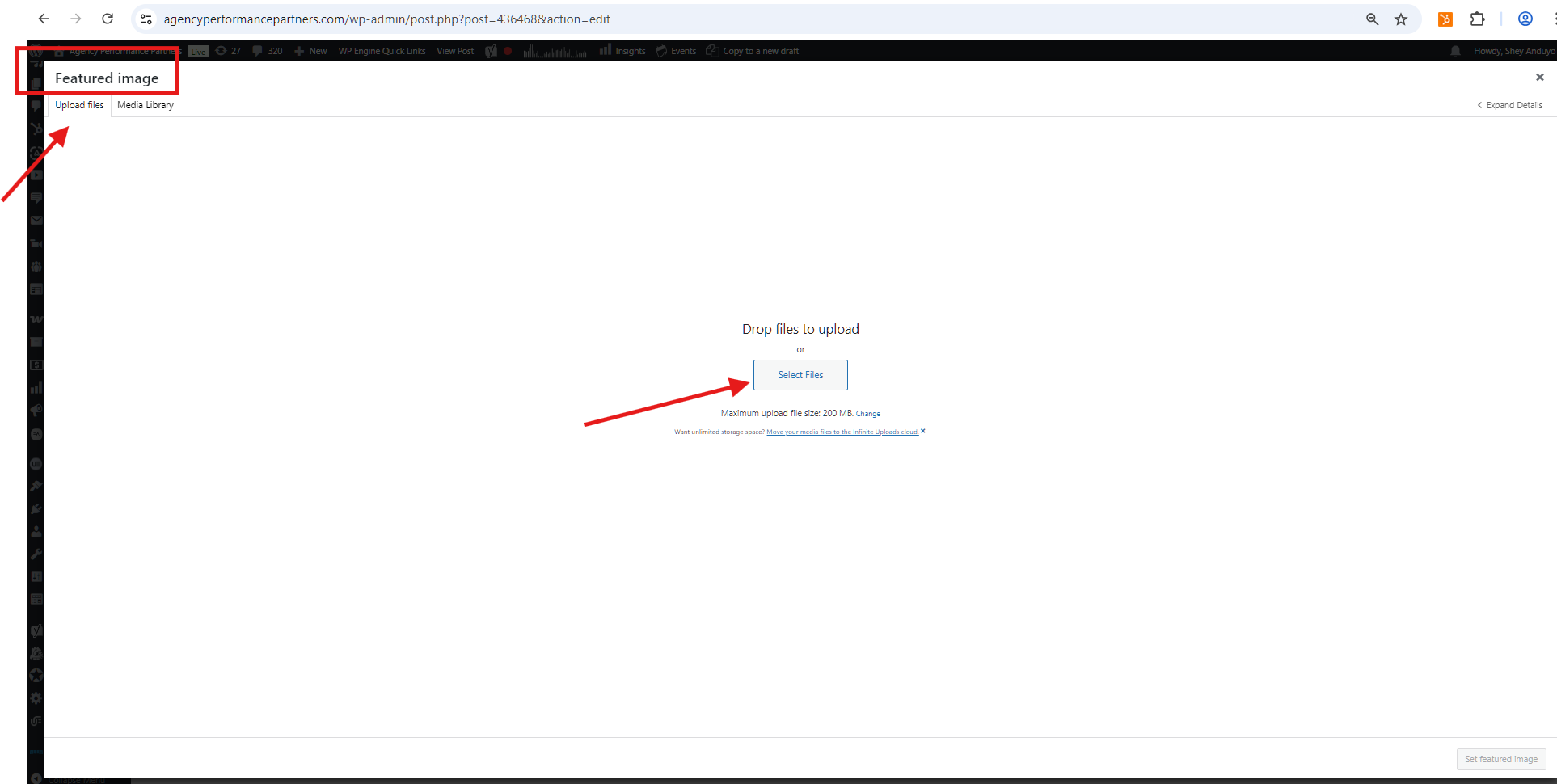
Go to Featured Image section.
-
Click Set Featured Image / See Featured Image.
-
Select Upload Files.
-
Upload the Feature Image created in Canva.
7️⃣ Final Step: Schedule the Blog
-
After confirming both images are uploaded correctly:
-
Banner is in Blog Settings
-
Feature Image is set
-
-
Set the post to Scheduled on the correct date.
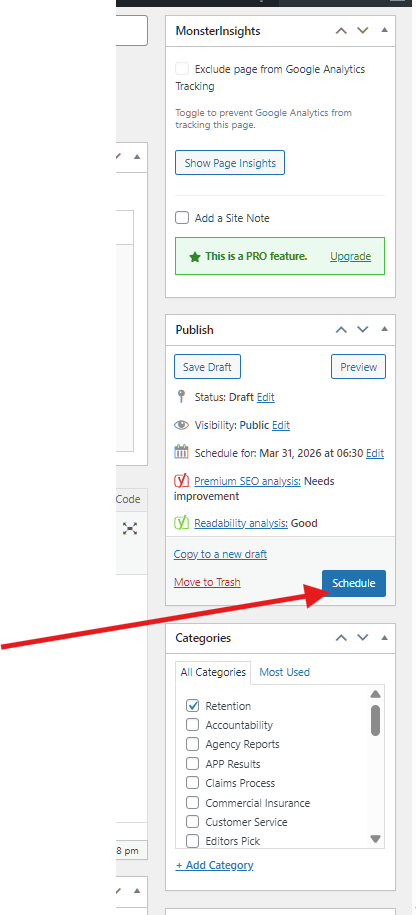
✅ The blog is now visually complete and ready for publishing.