![709081_APP-Logo White_042920-2.png]](https://knowledge.agencyperformancepartners.com/hs-fs/hubfs/709081_APP-Logo%20White_042920-2.png?width=50&height=50&name=709081_APP-Logo%20White_042920-2.png)
Desired Outcome
- Monthly fun posts are relevant to holidays and seasonal themes
- Content is creative, engaging, and audience-driven
- ChatGPT is used effectively to generate ideas, questions, and captions
- Final Canva designs are visually strong, on-brand, and ready for posting
Unacceptable Actions
- Skipping the Marketing Calendar check
- Choosing irrelevant or incorrect holidays
- Creating posts without a clear engagement question or hook
- Copying past designs without adapting to the current month
- Posting without review for tone, grammar, or brand alignment
Step-by-Step Process: Creating Monthly Canva Fun Posts
1. Check the Marketing Calendar
- Open the Marketing Calendar
- Identify the specific month you are working on
- Review all holidays, observances, and key dates for that month
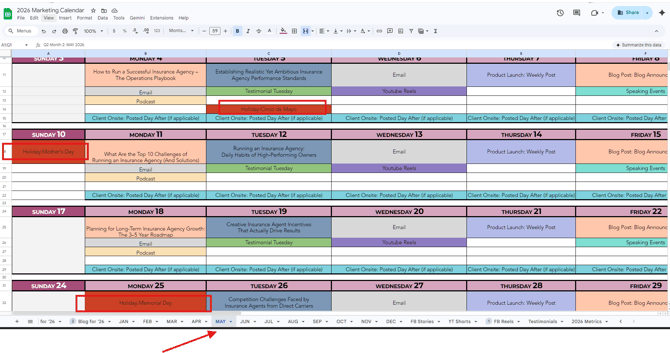
✔ Examples of holidays to look for:
- Mother’s Day
- Cinco de Mayo
- Memorial Day
2. Open Canva
- Log in to Canva
- Navigate to the design folder for marketing posts
3. Create a New Draft
- Find the previous month’s Fun Post design
- Make a copy of the previous design
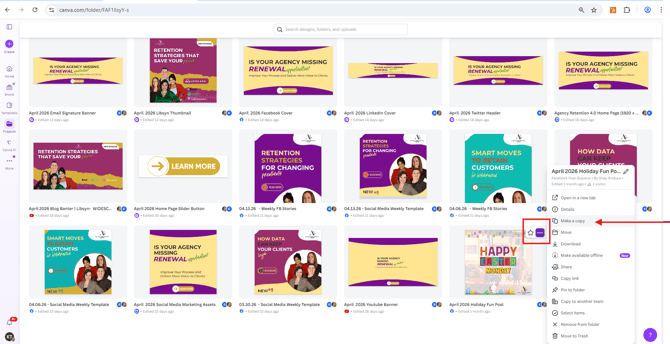
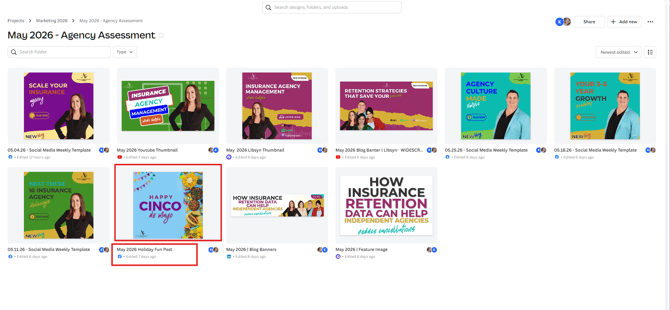
- Rename the file to reflect the current month and year
4. Build the Design Concept
- Choose a holiday from the Marketing Calendar
- Brainstorm visual ideas based on the theme
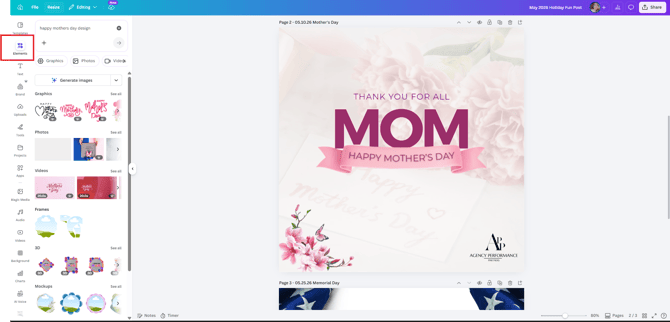
- Use Canva Elements to explore:
- Icons
- Illustrations
- Backgrounds
- Festive graphics
- Ensure design matches the holiday mood and tone
5. Apply Holiday-Specific Design Ideas
Use the following as creative direction examples:
- Mother’s Day
- Floral elements, warm tones, hearts, soft aesthetic
- Cinco de Mayo
- Bright colors, festive patterns, cultural-inspired visuals
- Memorial Day
- Patriotic colors (red, white, blue), flags, respectful tone
6. Finalize the Design
- Ensure all text is readable and aligned
- Maintain brand colors and fonts
- Check spacing, alignment, and visual balance
- Confirm the design reflects the correct holiday theme
7. Save and Organize
- Save final design in the correct monthly folder
- Ensure file name includes:
- Month
- Year
- “Fun Post” tag (if applicable)
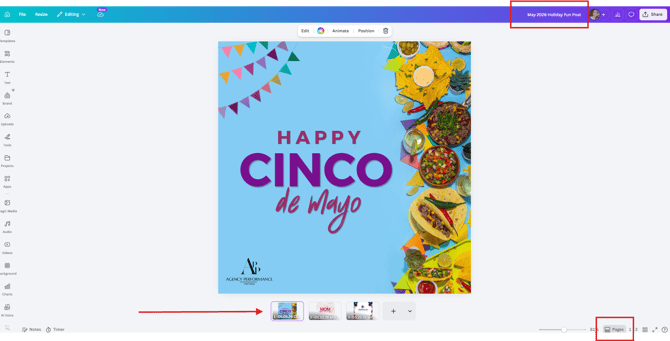
AFTER CANVA DESIGN IS COMPLETED
8. Create Social Media Post Using ChatGPT
Once the Canva graphic is finished, you MUST create the social media caption using ChatGPT.
This is a required step after design completion.
9. ChatGPT Prompt Workflow (FOR SOCIAL MEDIA POST CREATION)
Prompt 1: Generate Engagement Questions
“Give me 10 engaging social media question ideas for [Holiday Name]. Make them fun, emotional, and highly engaging for an audience. Include emojis.”
- Choose ONE best question from the list
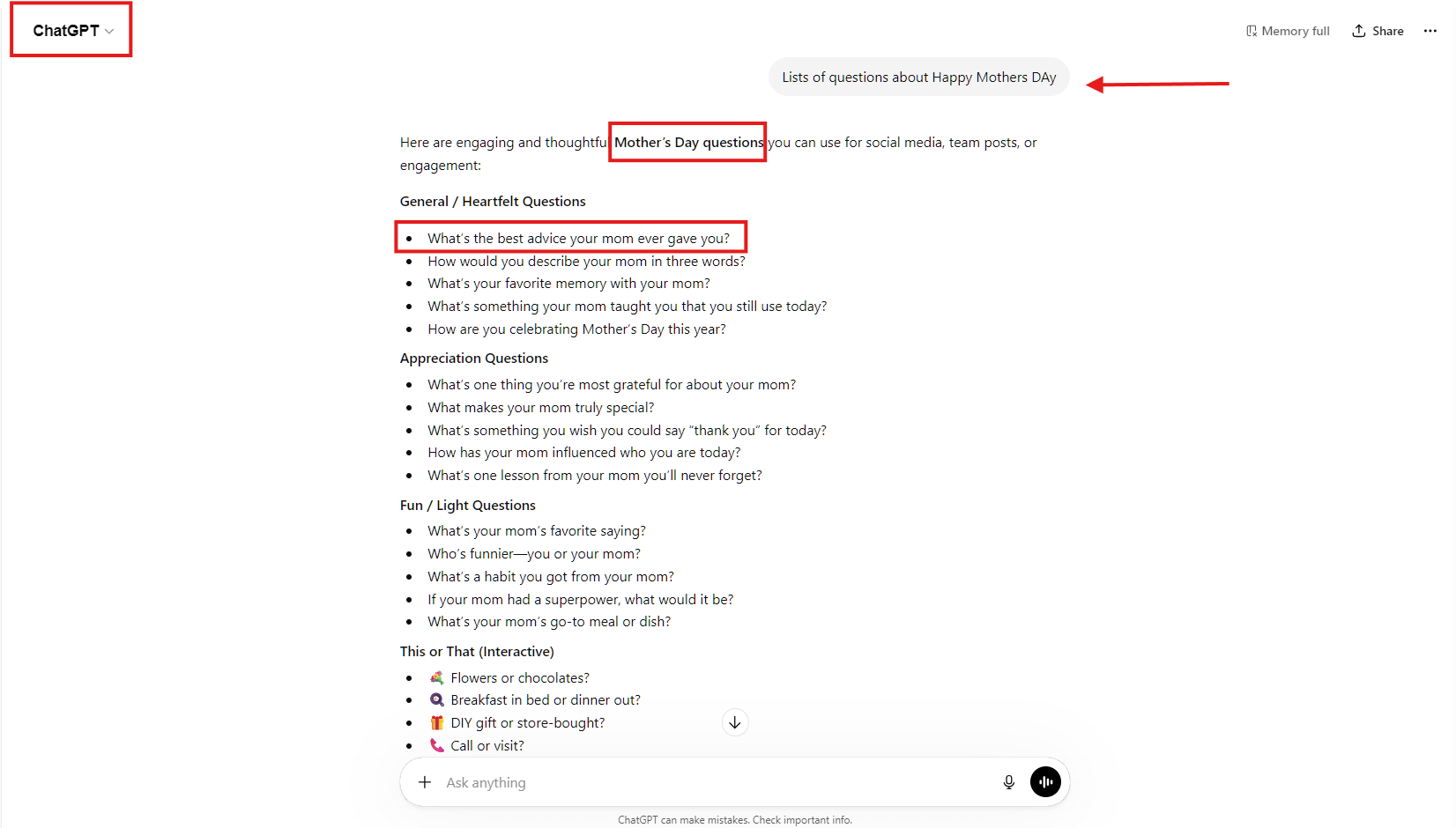
Prompt 2: Create Final Social Media Caption
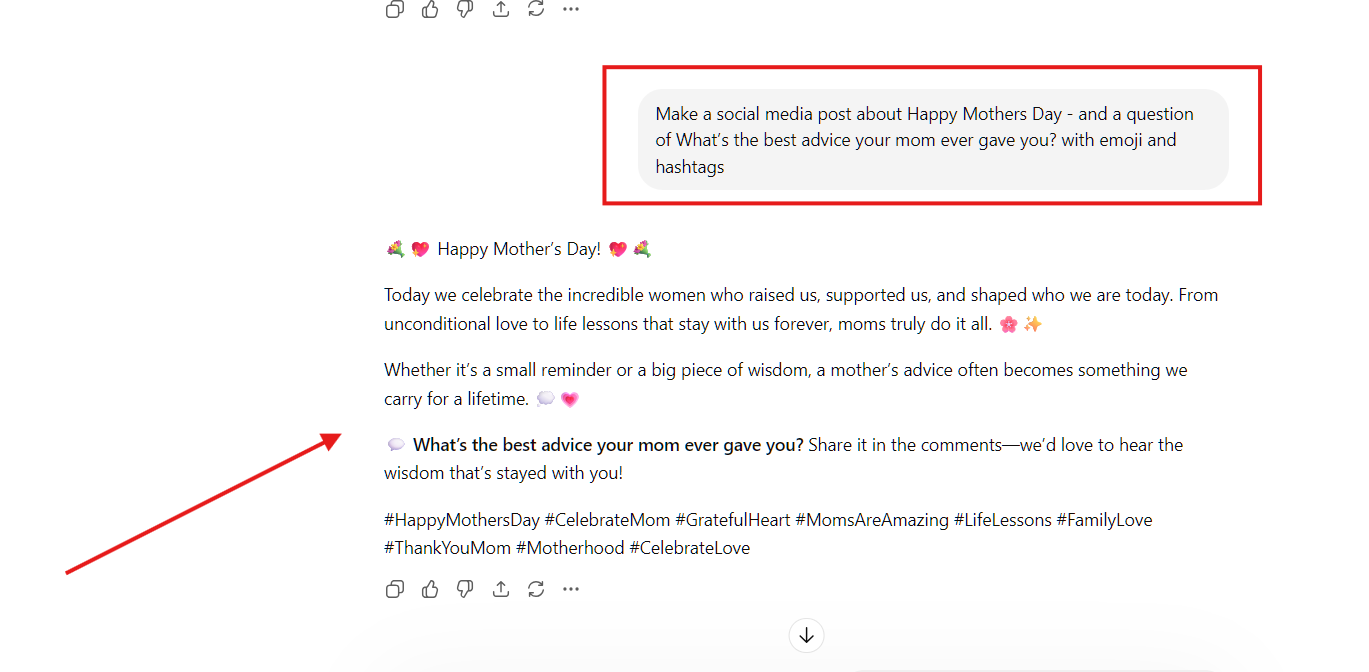
“Make a social media post about Happy [Holiday Name]. Include this question: ‘[Insert Selected Question]’ Make it engaging, add emojis, and include relevant hashtags.”
Example (Mother’s Day)
“Make a social media post about Happy Mothers Day. Include this question: ‘What’s the best advice your mom ever gave you?’ Make it engaging, add emojis, and include relevant hashtags.”
Key Reminders
- Always start with the Marketing Calendar
- Keep designs simple, engaging, and on-brand
- Each month should feel fresh but consistent with previous posts
- Creativity is encouraged, but accuracy and alignment come first