![709081_APP-Logo White_042920-2.png]](https://knowledge.agencyperformancepartners.com/hs-fs/hubfs/709081_APP-Logo%20White_042920-2.png?width=50&height=50&name=709081_APP-Logo%20White_042920-2.png)
Desired Outcome
- Only approved clients (who opted in) are posted on social media
- Canva graphic is clean, on-brand, and includes the correct client logo
- Social media caption is accurate and aligned with the client’s program
- Post is created in HubSpot Social as a draft for approval
- Task is reassigned with all components completed
Unacceptable Actions
- Posting clients who selected “We are a bit private”
- Skipping review of the form submission in HubSpot
- Using incorrect client name, logo, or program
- Creating posts without Canva graphics
- Publishing directly without manager approval
- Not reassigning the task after completion
Step-by-Step Process
1. Access HubSpot Task
- Go to HubSpot
- Locate the assigned task:
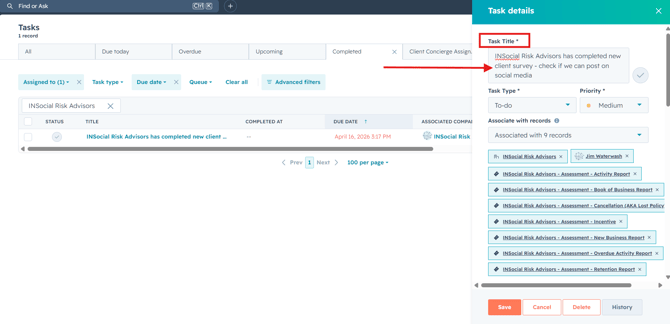
“[Agency Name] has completed new client survey - check if we can post on social media”
2. Review Associated Records
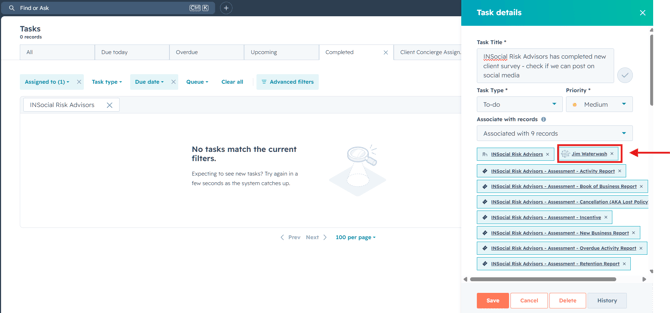
- Open Associated Records
- Identify the Owner/Leader who submitted the form
3. Check Form Submission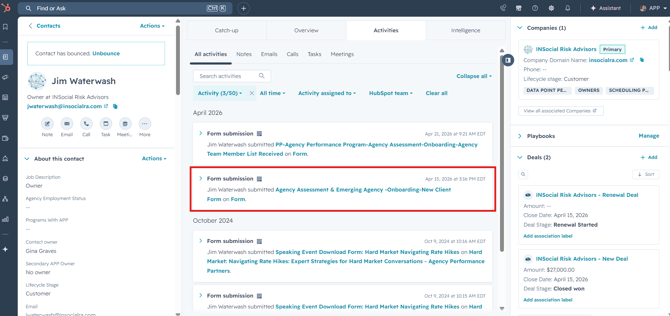
- Open form:
Agency Assessment & Emerging Agency - Onboarding - New Client Form - Locate: Social Media Announcement
Decision Point:
- ✅ If “Share Away” → Proceed
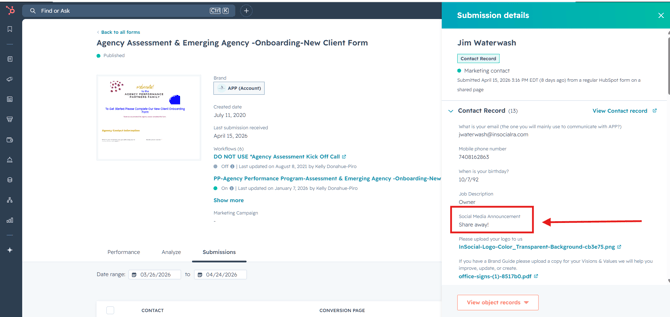
- ❌ If “We are a bit private” →
- Do NOT continue
- Close the task
- Leave a comment explaining no post will be made
4. Open Canva & Create Graphic
- Go to Canva
- Open template:
“2026 APP New Client Announcements (Facebook)”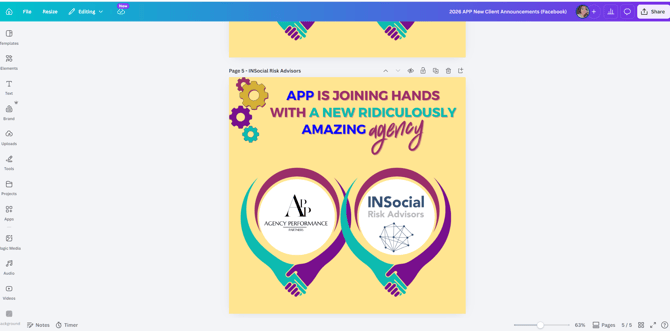
- Use the current template and:
- Add Client Name
- Insert Client Logo
5. Get Client Logo
- Go to HubSpot → Company Record
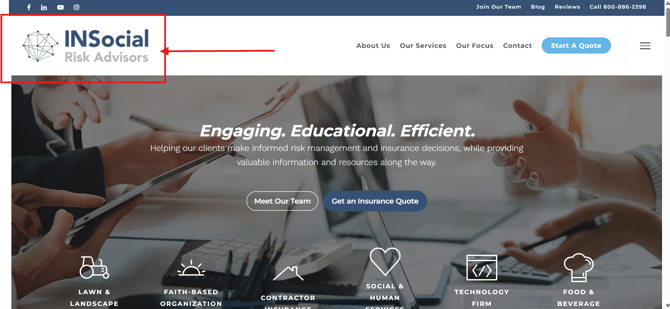
- Open the client’s website
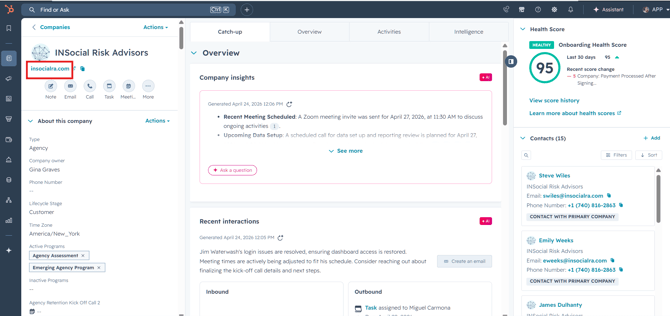
- Download the logo
- Upload and place it into Canva design
6. Create Social Media Caption (AI Prompt)
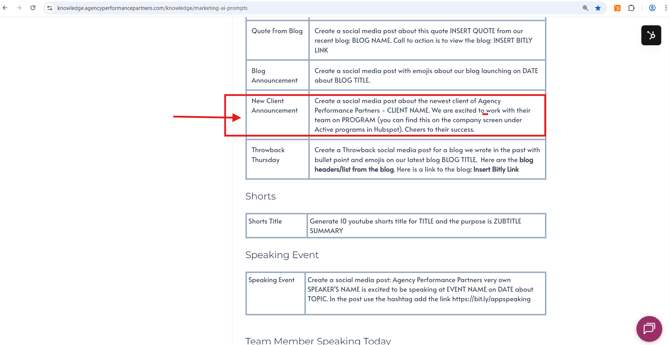
- Open Marketing AI Prompts
- Select: “New Client Announcement”
Prompt to Use:
“Create a social media post about the newest client of Agency Performance Partners - CLIENT NAME. We are excited to work with their team on PROGRAM (you can find this on the company screen under Active programs in HubSpot). Cheers to their success.”
✔ Replace:
- CLIENT NAME
- PROGRAM (from HubSpot → Active Programs)
7. Create Post in HubSpot Social
- Go to HubSpot Social
- Upload Canva graphic
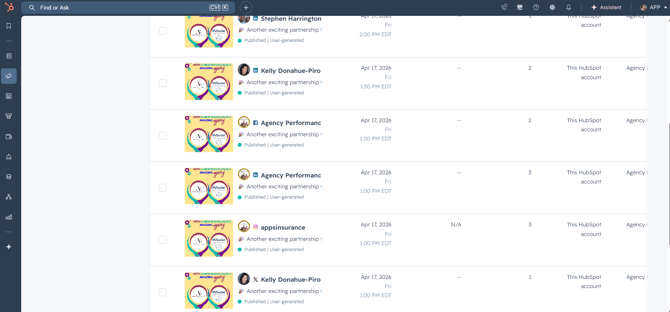
- Paste generated caption
- Set post as Draft (DO NOT publish yet)
8. Reassign Task for Approval
- Return to HubSpot Task
- Reassign to:
Manager for approval of graphic and caption
Final Checklist
- Form checked (approved: “Share Away”)
- Correct client name and program used
- Logo downloaded and added to Canva
- Canva graphic completed and on-brand
- Social media caption generated using AI prompt
- Post created in HubSpot Social as draft
- Task reassigned for approval
Key Reminder
👉 Always verify client permission first before creating anything. No approval = no post.