![709081_APP-Logo White_042920-2.png]](https://knowledge.agencyperformancepartners.com/hs-fs/hubfs/709081_APP-Logo%20White_042920-2.png?width=50&height=50&name=709081_APP-Logo%20White_042920-2.png)
Desired Outcome
- Speaking event blog is fully created and saved as a draft in WordPress
- All event details are accurate and pulled directly from HubSpot
- Canva feature image is properly designed and uploaded
- Social media post is generated and ready for use
- Task is reassigned for review with all components completed
Unacceptable Actions
- Skipping review of HubSpot associated records
- Using incomplete or incorrect event information
- Not creating or uploading the correct Canva feature image
- Publishing without saving as draft first
- Failing to generate the social media post via ChatGPT
- Not reassigning the task to the Marketing Manager
Step-by-Step Process
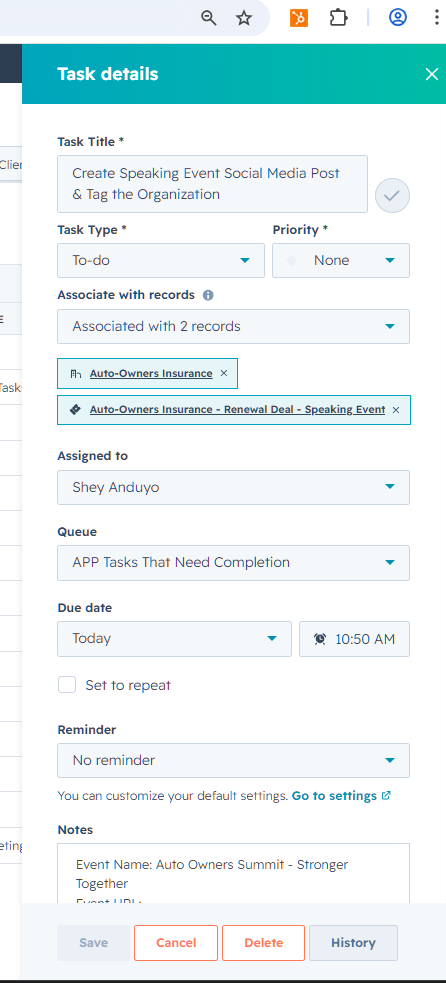
1. Access HubSpot Task
- Go to HubSpot
- Locate the automated task:
“Create Speaking Event Social Media Post & Tag the Organization” - (SAMPLE Task below)
2. Review Associated Records
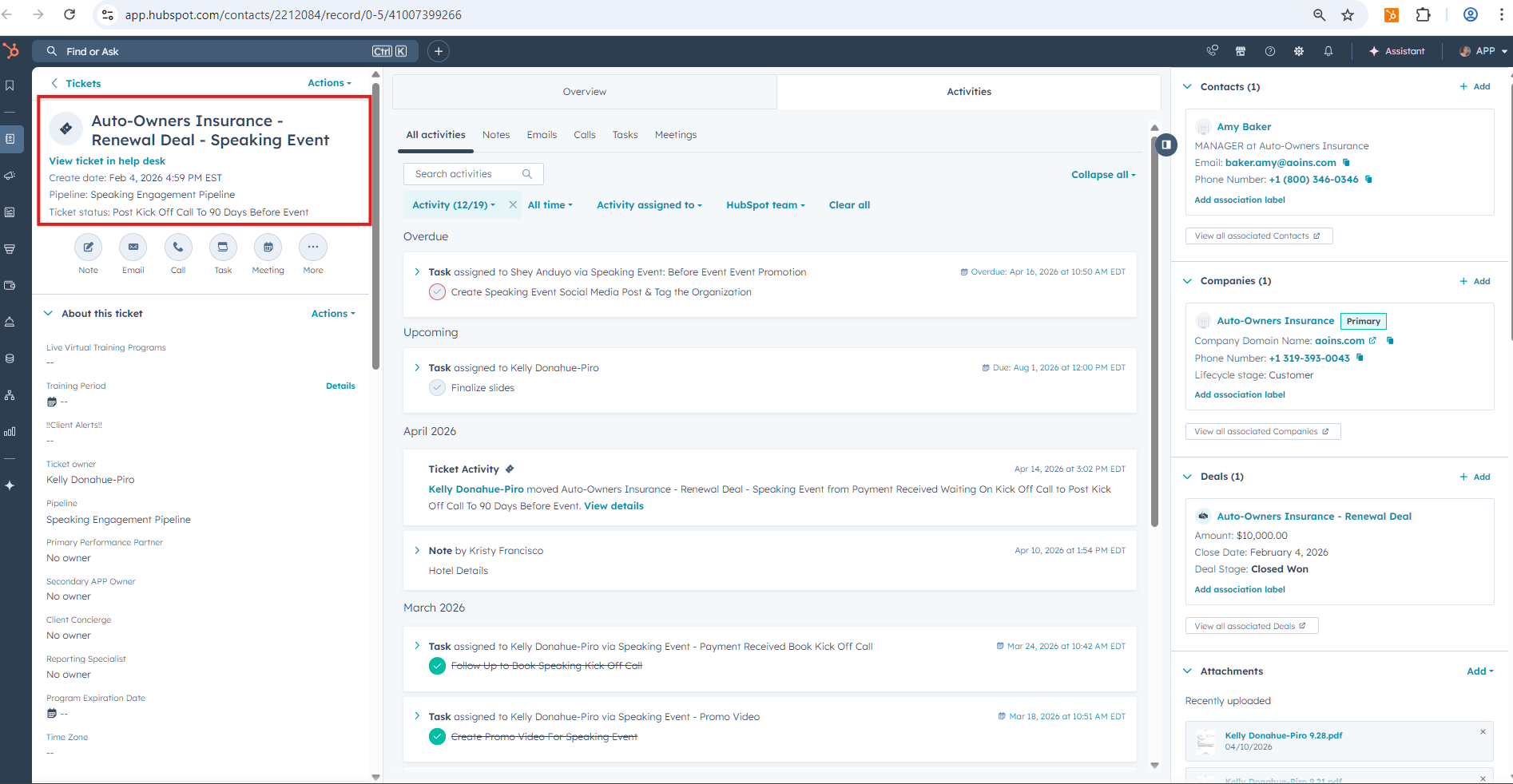
- Open the task and check Associated Records
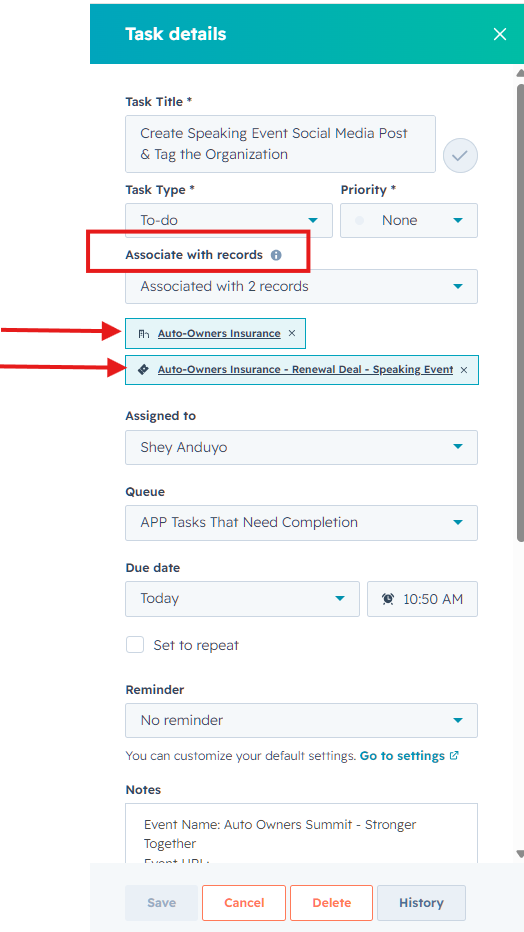
- Identify the speaking event and agency/company details
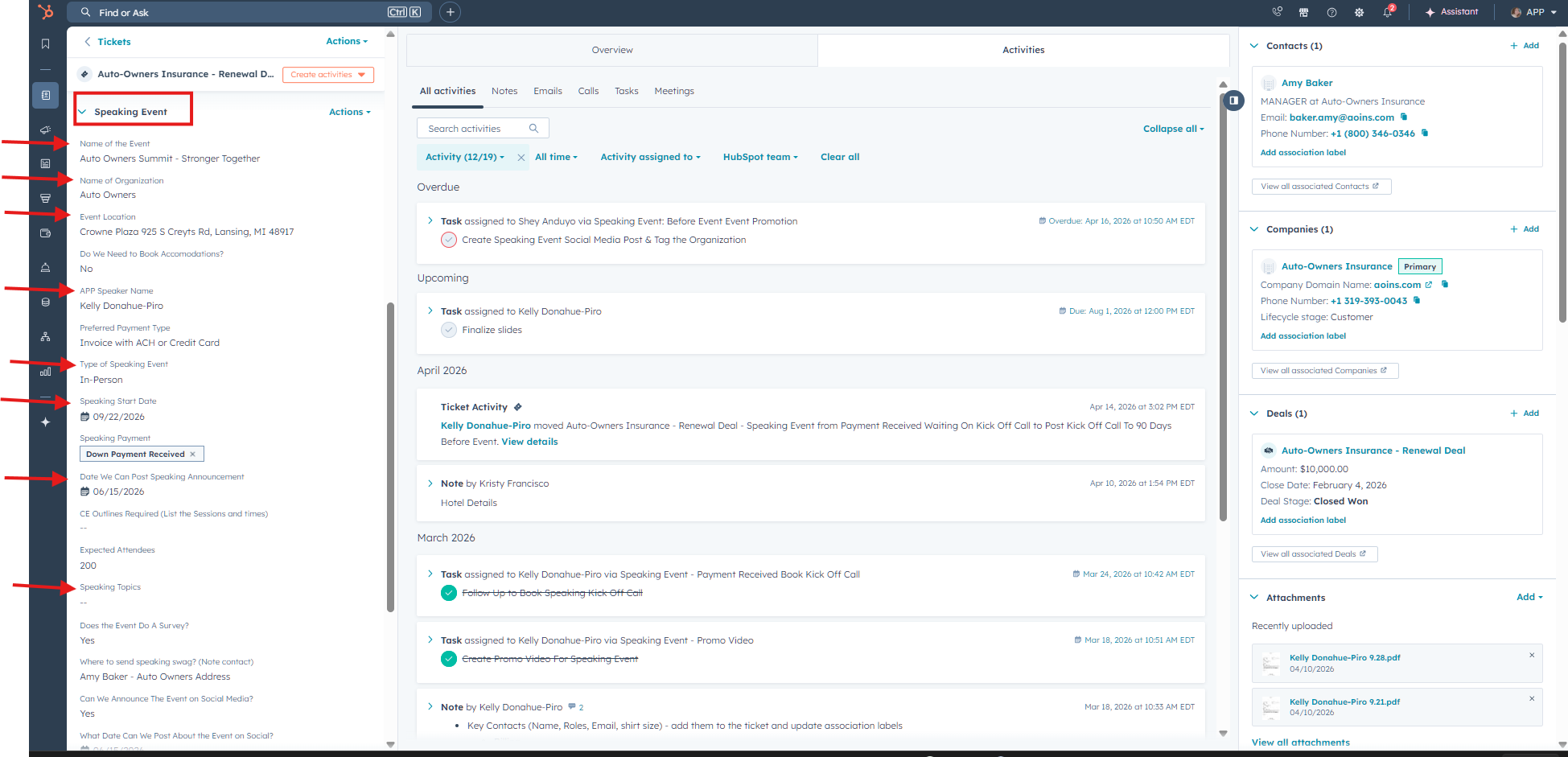
3. Gather Event Information (HubSpot)
On the left side (bottom → Company section), collect:
- Event Name
- Organization Name
- Event Location
- APP Speaker Name
- Type of Speaking Event
- Speaking Start Date
- Date to Post Announcement
- Speaking Topics
- Event URL
4. Create Canva Graphics
Go to Canva and update the following templates:
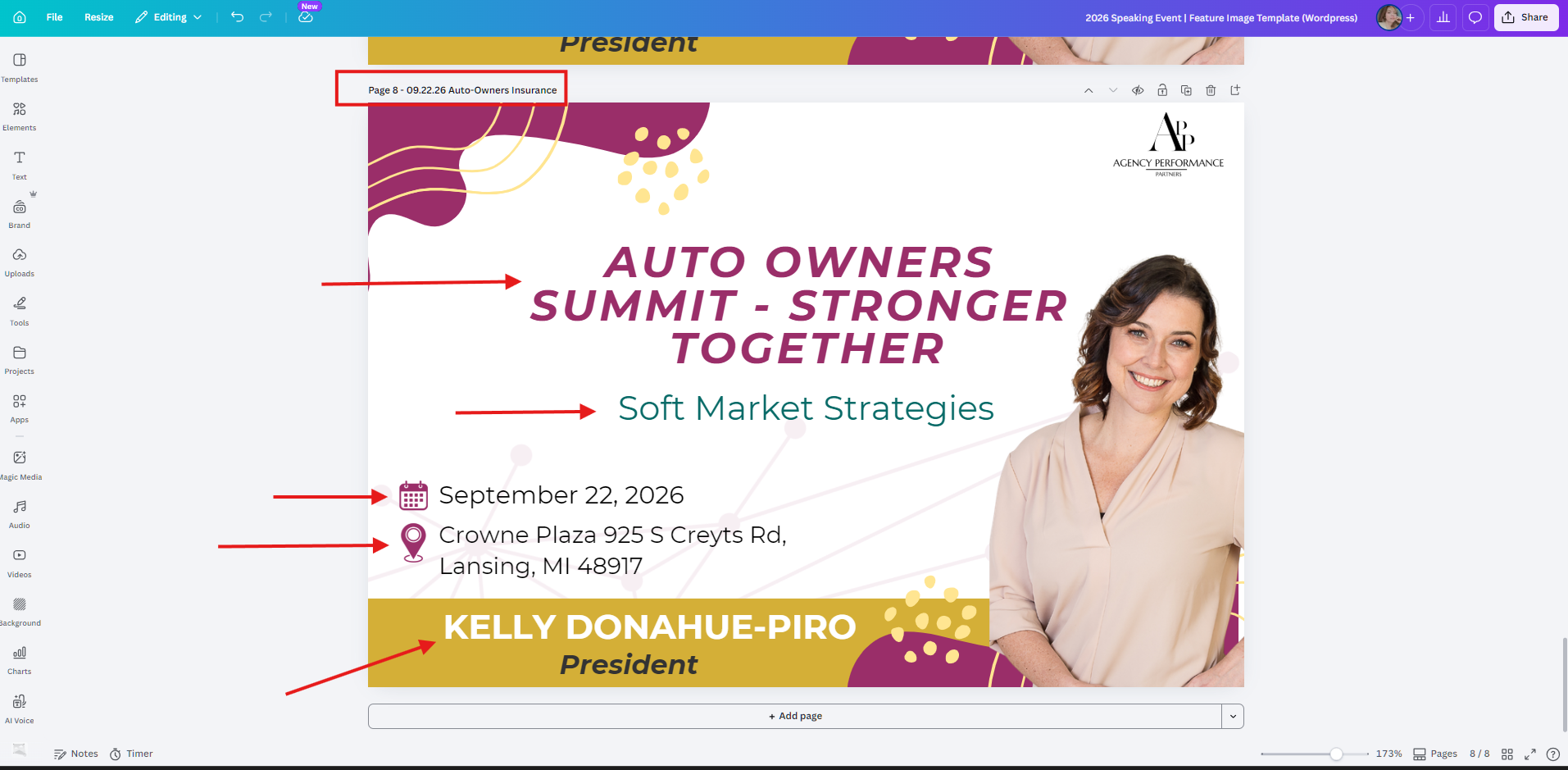
- (Year) Speaking Event | Feature Image Template (for WordPress)
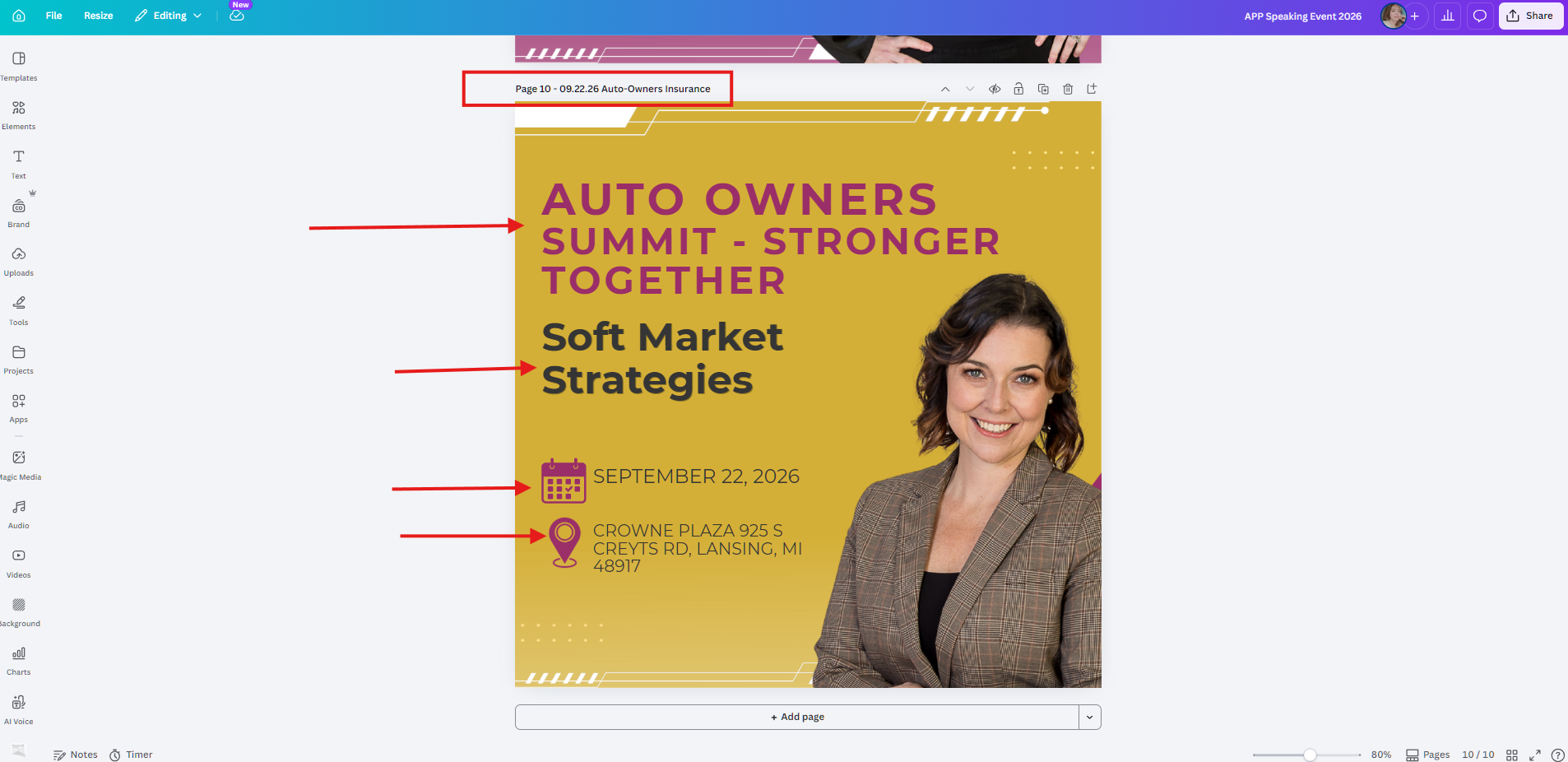
- APP Speaking Event (Year) (for Social Media Posting)
✔ Ensure:
- All details match HubSpot exactly
- Design is on-brand and clean
5. Create WordPress Event Draft
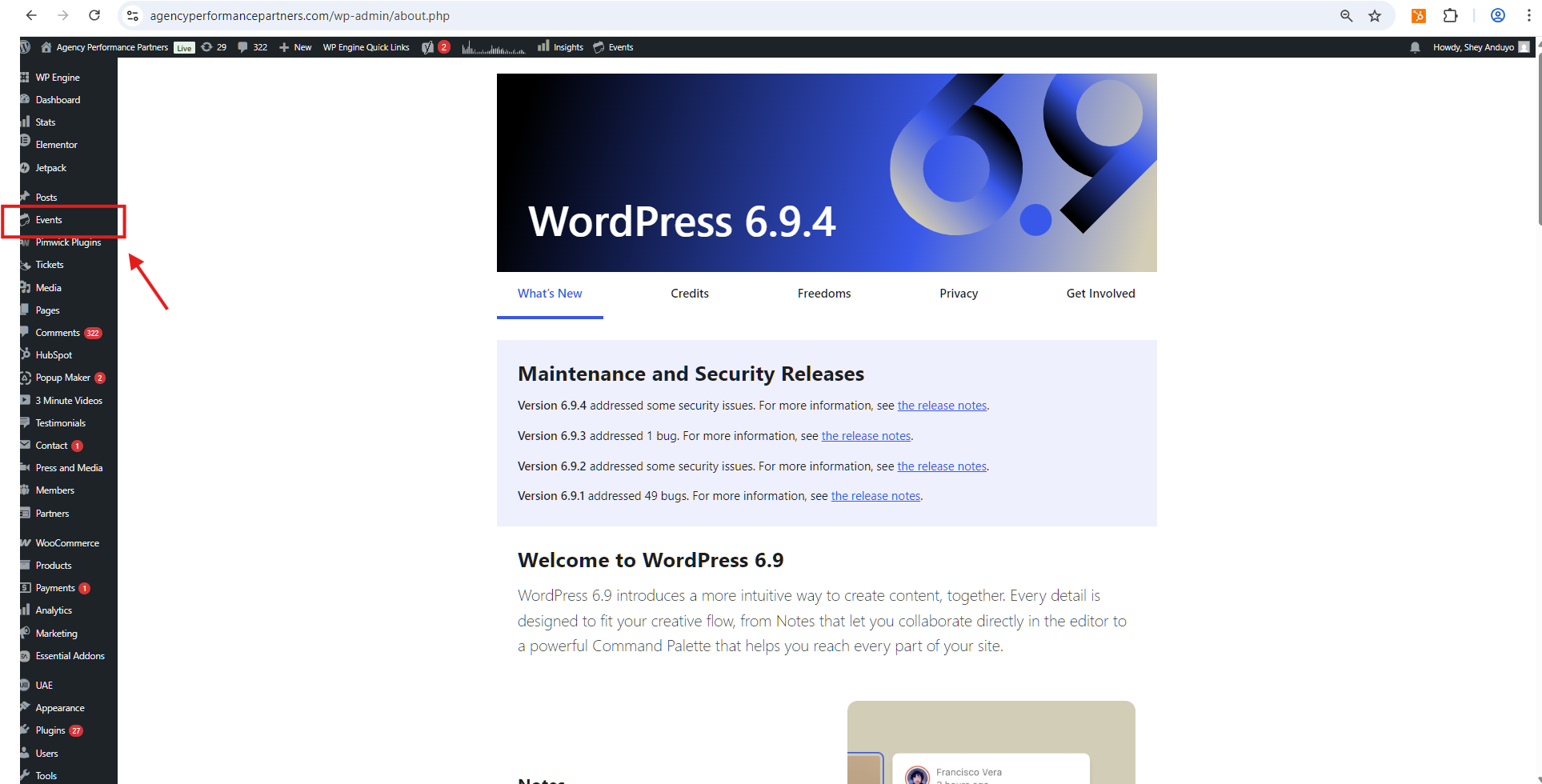
- Go to WordPress
- Click Add New Event
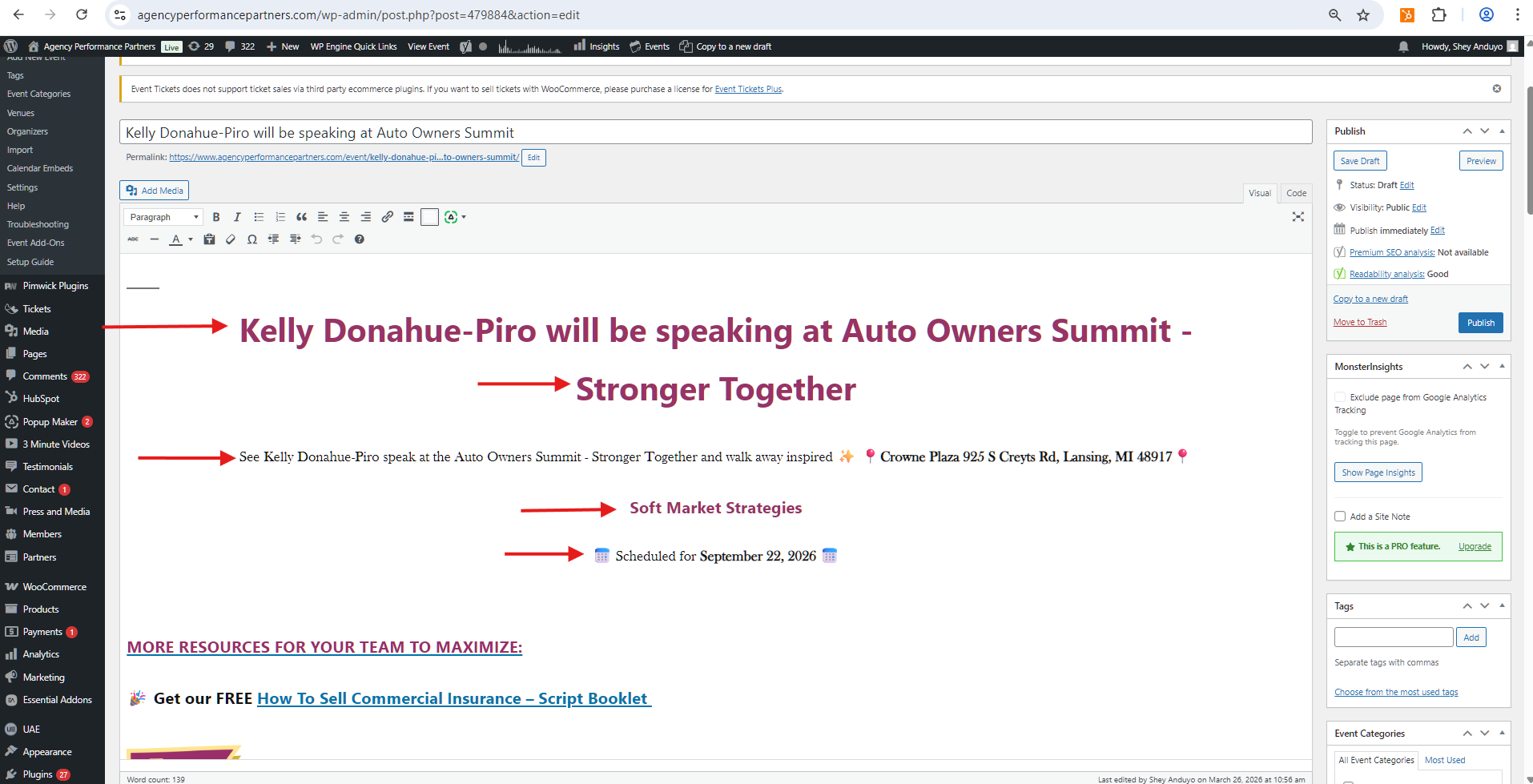
Add the following:
- Title (Event Name)
- Event details (based on HubSpot information)
- Date, location, and topic
- Event URL (if applicable)
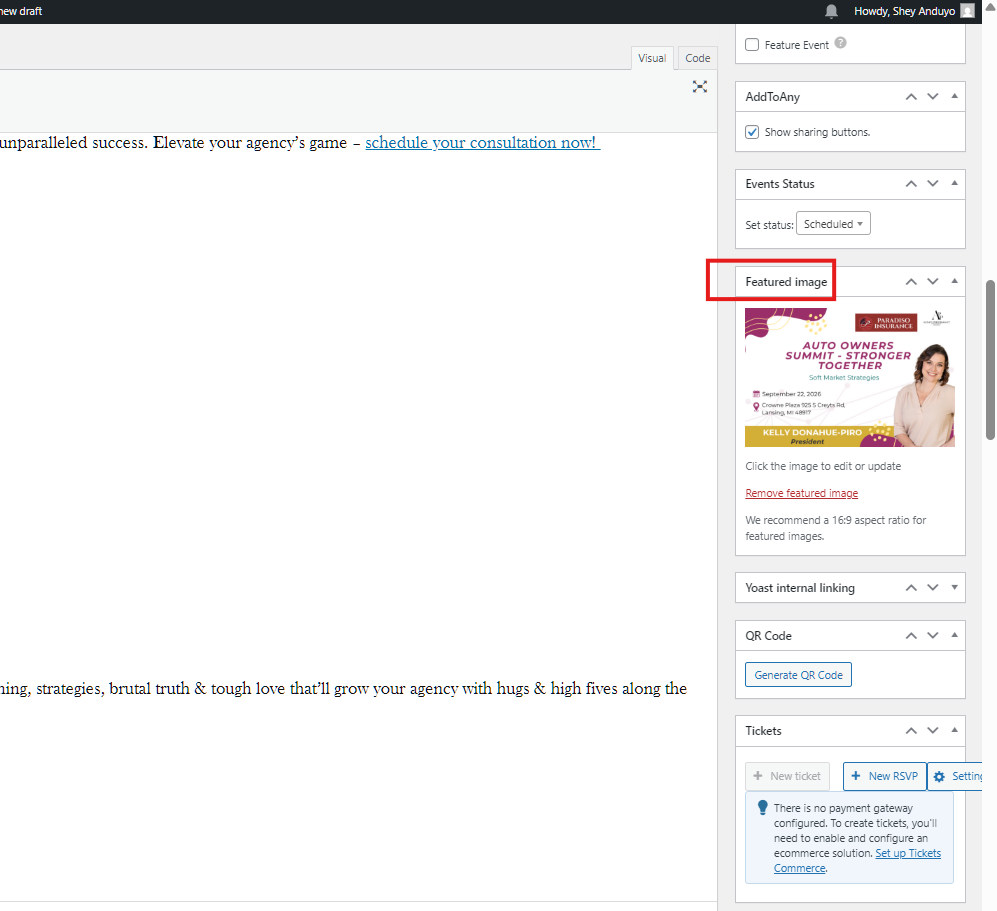
6. Upload Feature Image
- Download the WordPress feature image from Canva
- Upload it as the Featured Image in WordPress
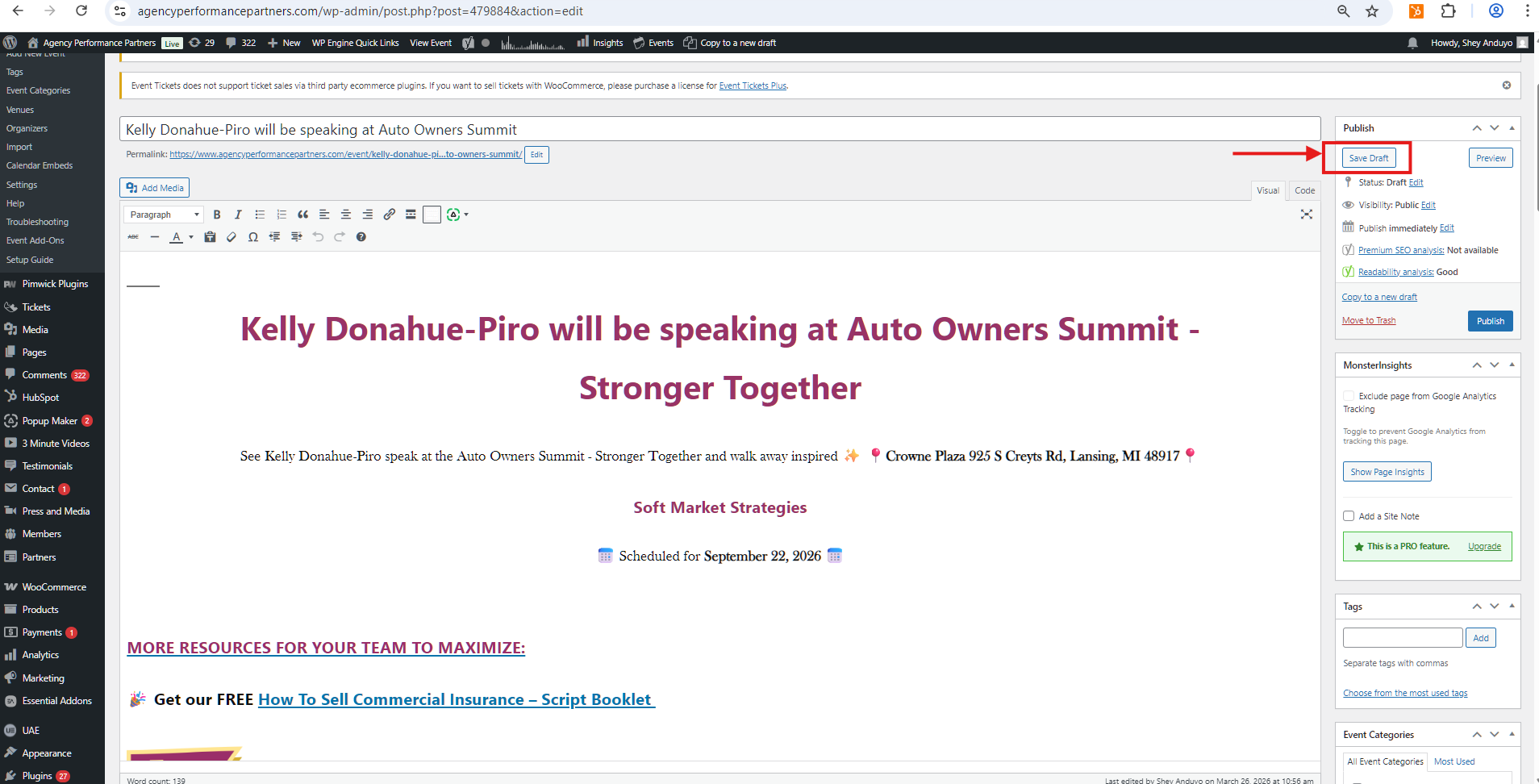
7. Save as Draft
- Do NOT publish
- Click Save as Draft
8. Create Social Media Post (ChatGPT Required Step)
Once the blog draft and graphics are complete, generate the social media caption using ChatGPT.
Prompt:
“Create a social media post: Agency Performance Partners very own SPEAKER'S NAME is excited to be speaking at EVENT NAME on DATE about TOPIC. In the post use hashtags and add the link https://bit.ly/appspeaking”
✔ Replace:
- SPEAKER’S NAME
- EVENT NAME
- DATE
- TOPIC
9. Reassign Task for Review
- Return to HubSpot
- Reassign the task to:
Marketing Manager for review
Final Checklist
- All event details pulled correctly from HubSpot
- Canva images created (Feature Image + Social Post)
- WordPress event created and saved as draft
- Feature image uploaded
- Social media caption generated via ChatGPT
- Task reassigned to Marketing Manager