![709081_APP-Logo White_042920-2.png]](https://knowledge.agencyperformancepartners.com/hs-fs/hubfs/709081_APP-Logo%20White_042920-2.png?width=50&height=50&name=709081_APP-Logo%20White_042920-2.png)
🏆 Desired Outcome
- All Page Banners are resized to the ideal SEO dimension of 1200 × 300 px.
- All Featured Images are updated to the ideal SEO dimension of 1200 × 630 px using the designated Canva template.
- Blog posts achieve faster page loading speeds (Core Web Vitals) and complete compatibility with Google Discover and social media rich preview cards.
Before editing, ensure you have access to the official Canva template for Featured Image updates:
- 🖼️ Featured Image Canva Template (1200 × 630 px):
Open Canva Featured Image Template
1.Open the Target Blog Post:
WordPress Dashboard Navigation.
-
Log in to your WordPress Admin Dashboard.
-
Locate the blog post you need to optimize and right click Open in New Tab search for the Blog you need to Edit.
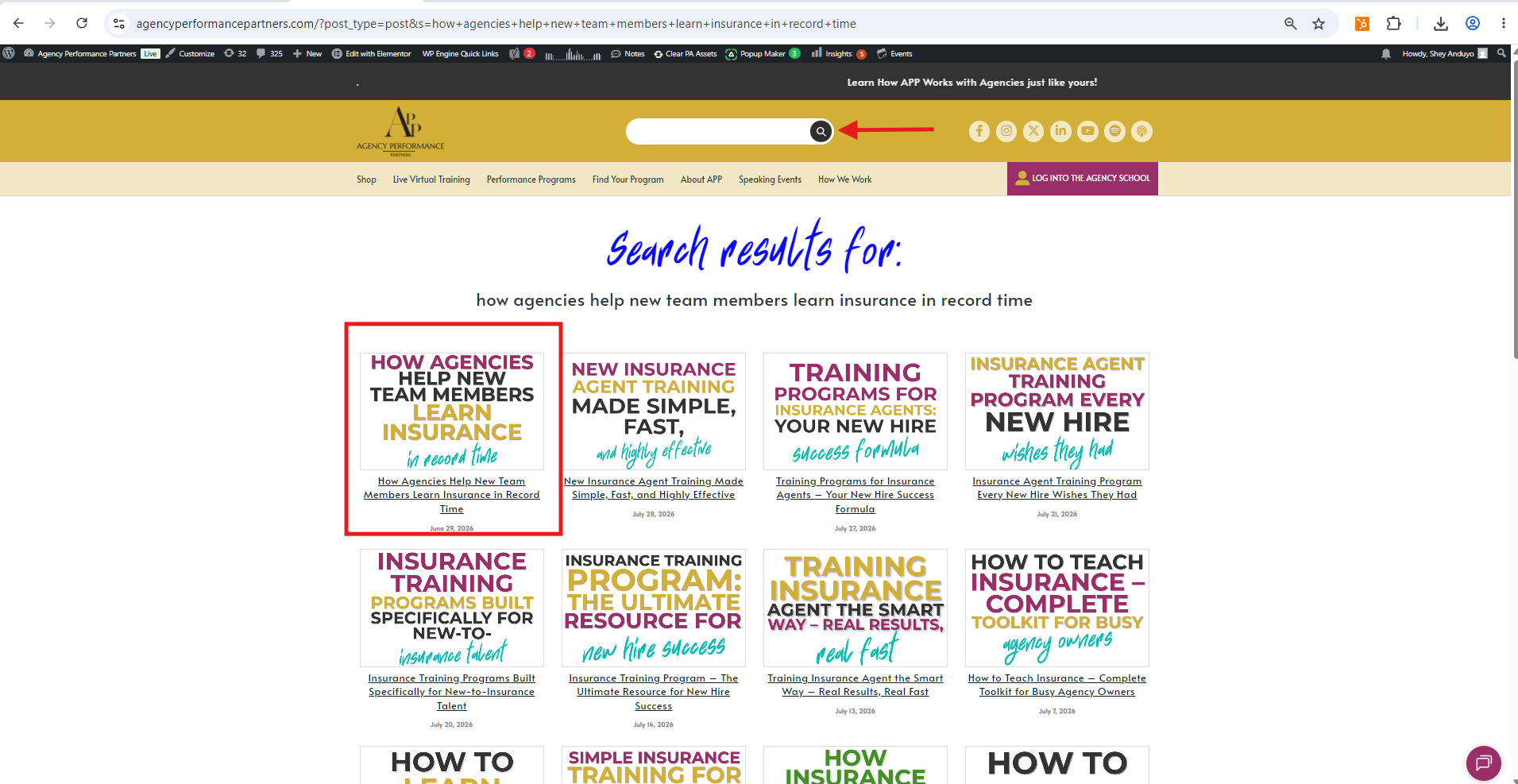
Direct WordPress Media Scaling.
-
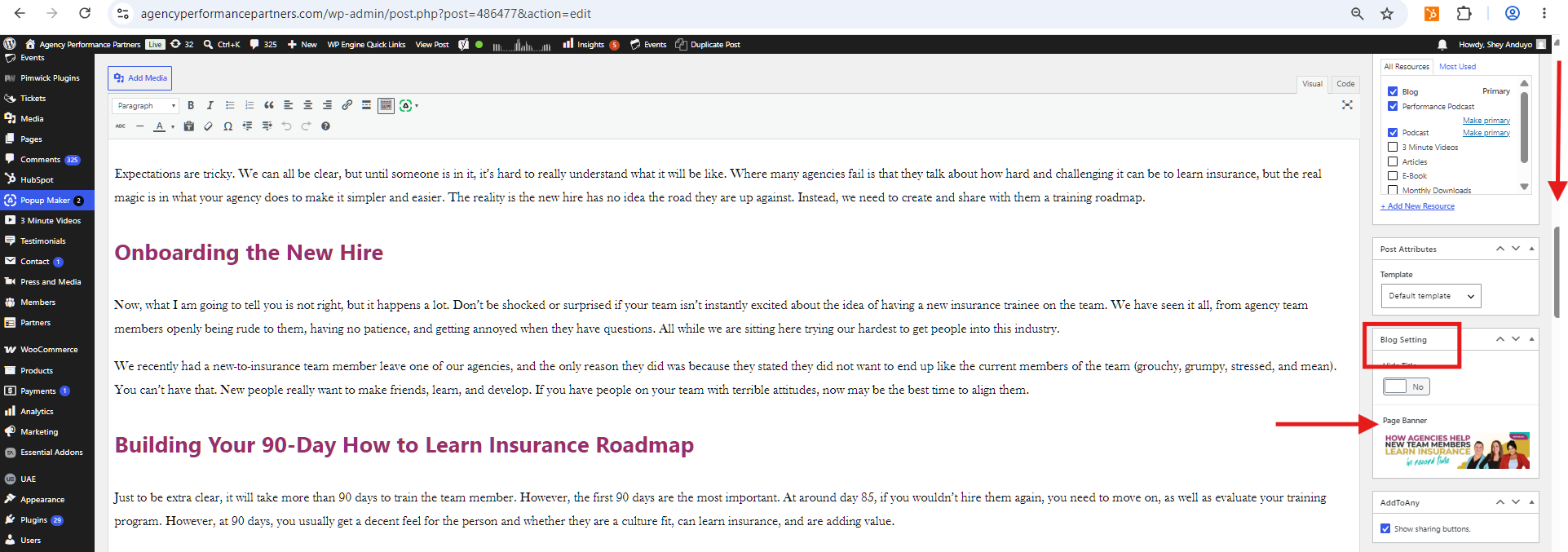
On the post editing page, look at the right-hand sidebar.
-
Scroll down to the Blog Settings section.
-
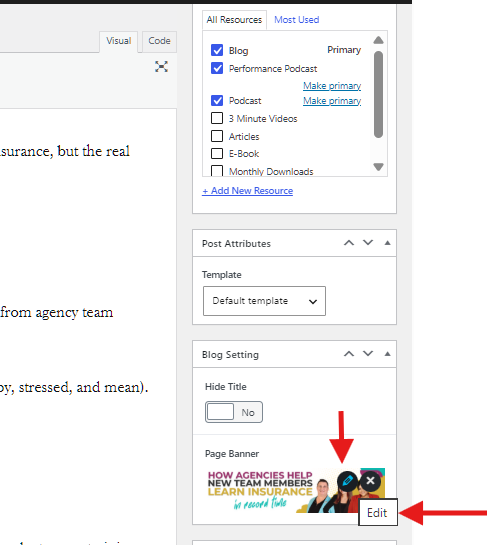
Locate Page Banner and click the Pencil icon (edit image).
-
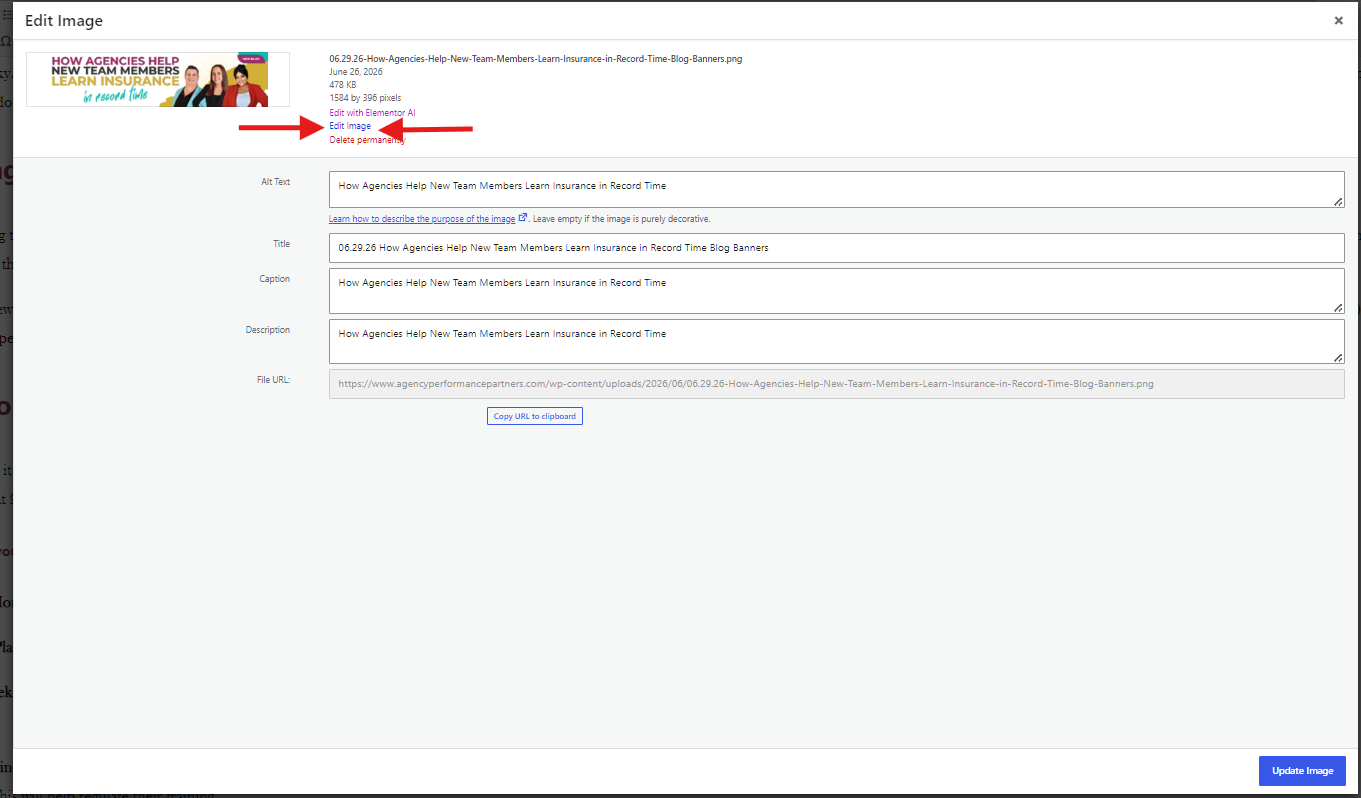
Click Edit Image under the preview window.
-
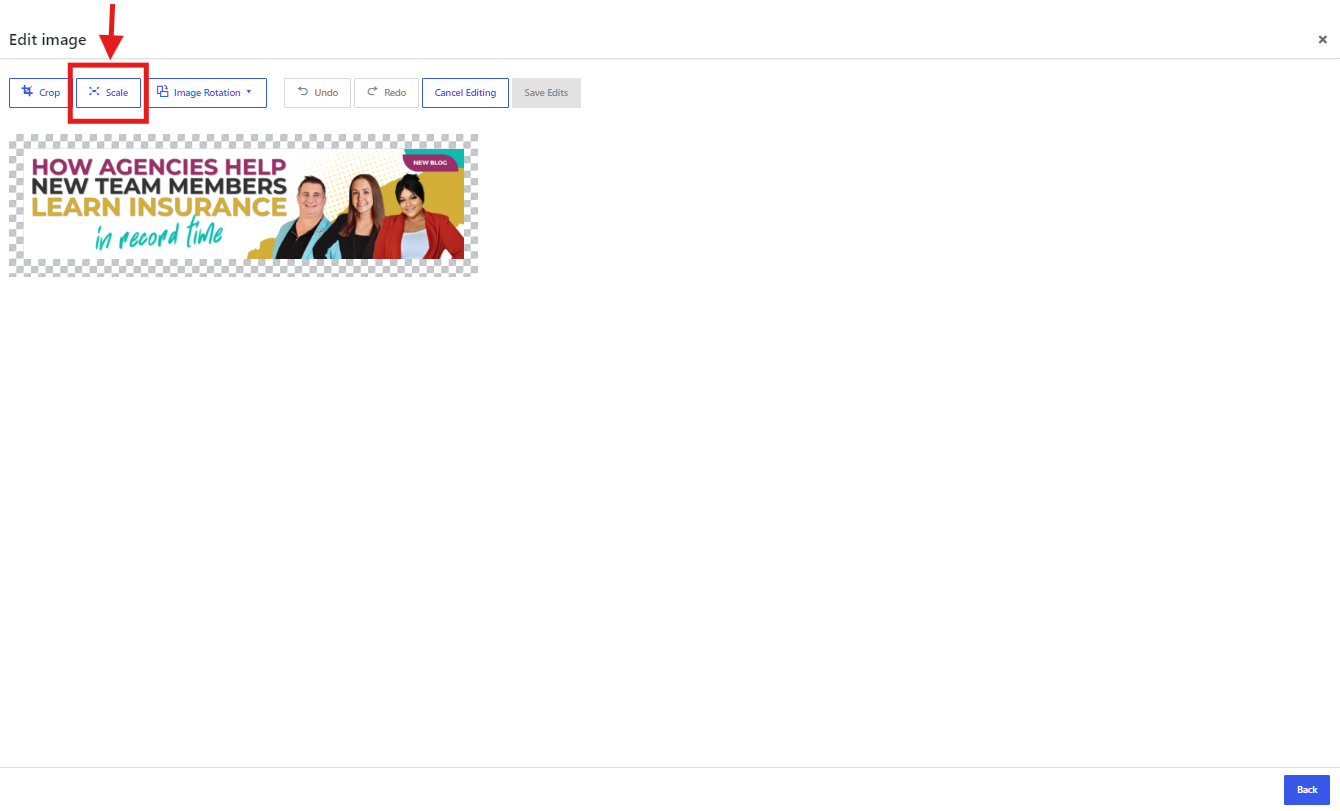
In the Scale Image panel on the right, change the dimensions from the default (1584 × 396) to the SEO-ideal size of 1200 × 300.
-
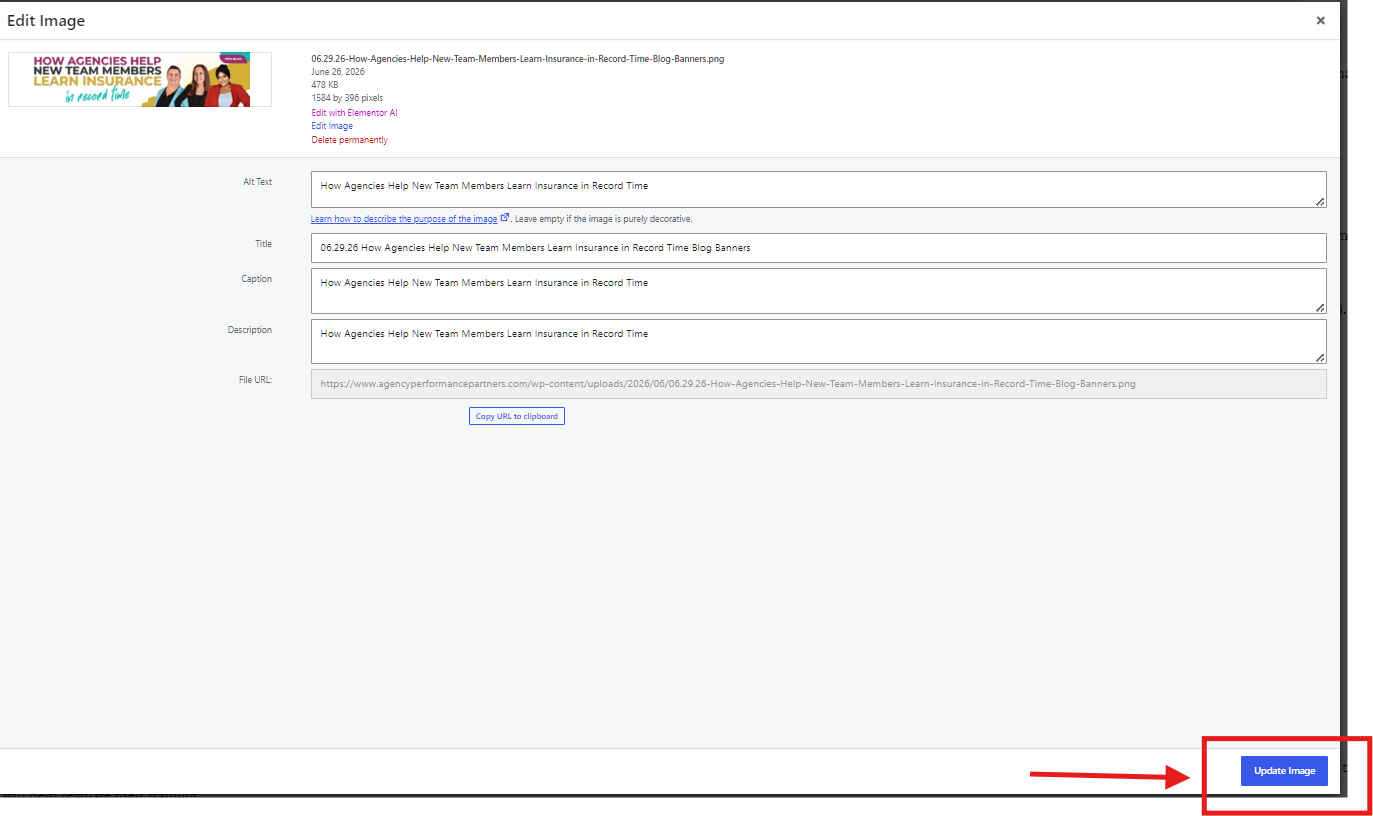
Click Scale, then click Save.
-
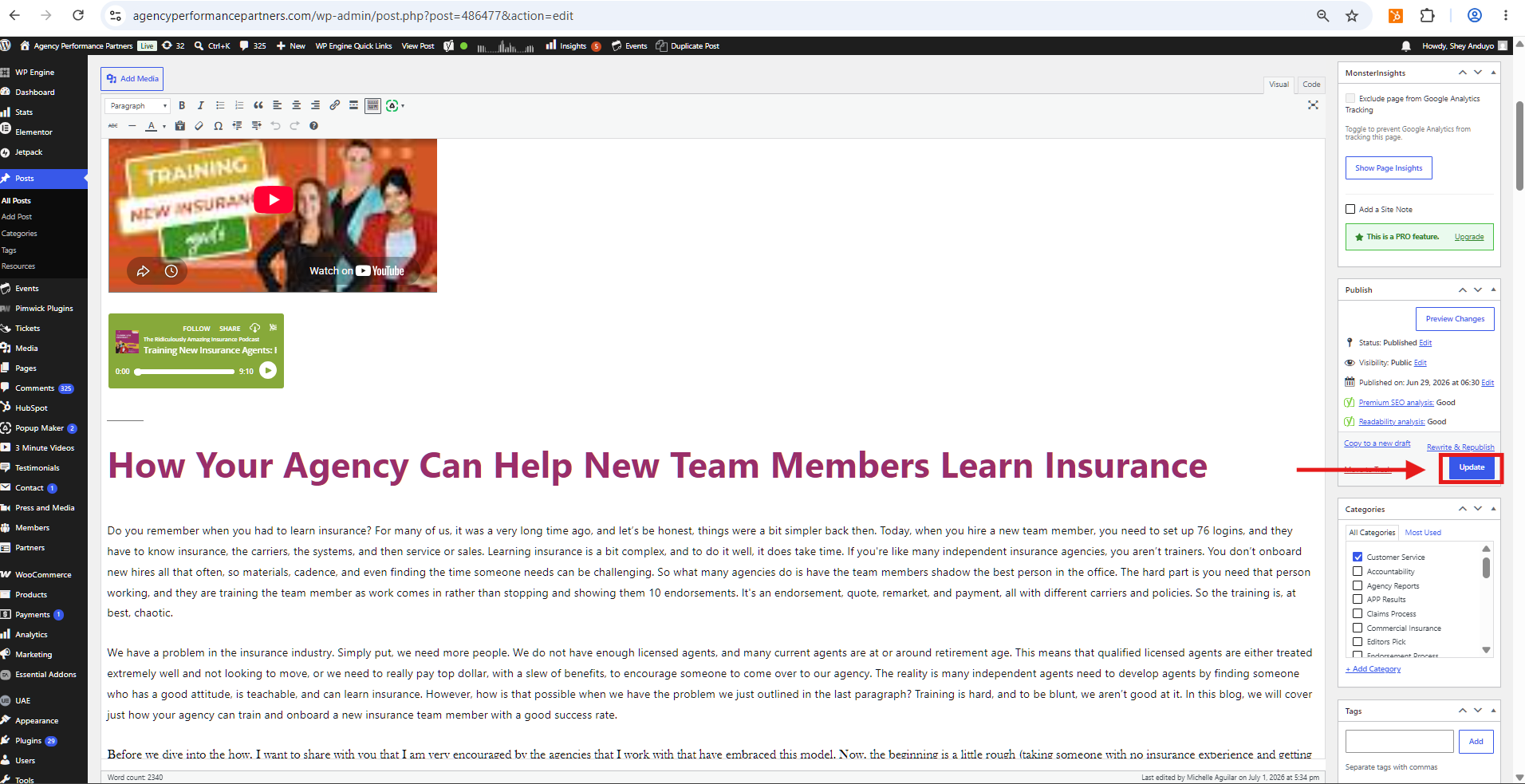
Update or save the post draft.
-
In the right-hand sidebar, scroll to the Featured Image section.
-
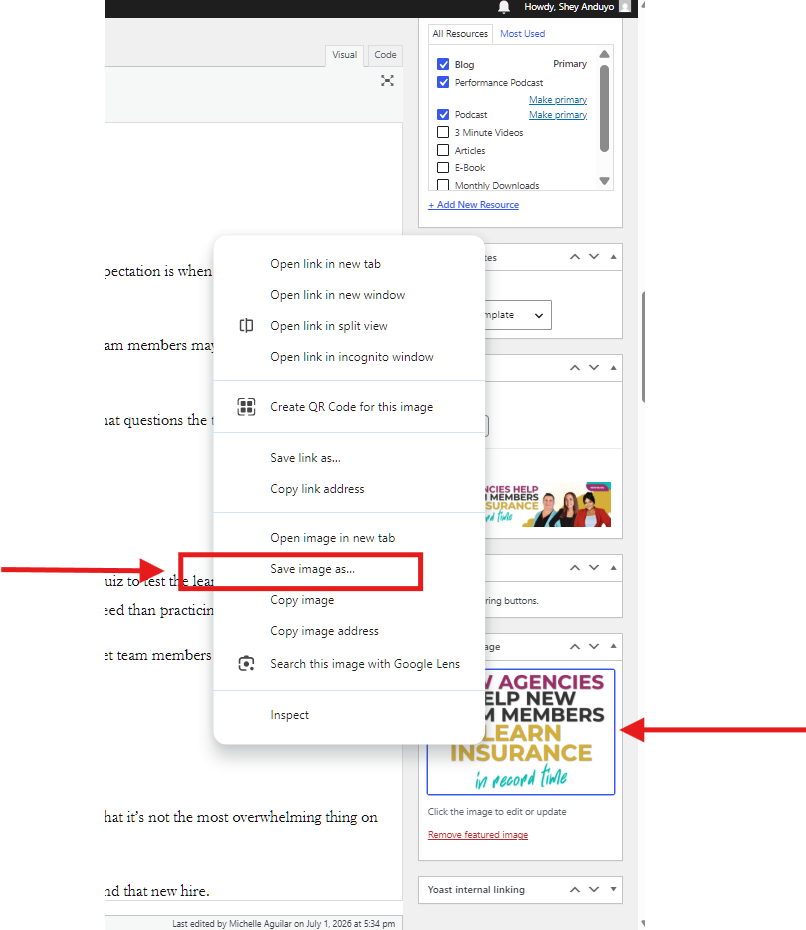
Since WordPress cannot directly scale featured images to a 1.91:1 ratio without cropping, right-click the existing image preview and save the image file to your computer.
-
Open the Canva Featured Image Template.
-
Upload the image file you saved in Step 3 to Canva.
-
Place and adjust the image into the 1200 × 630 canvas, ensuring all main visual elements remain within safe focal margins.

-
Export/Download the new image as a WebP or optimized JPG file.
-
Return to your WordPress post editor.
-
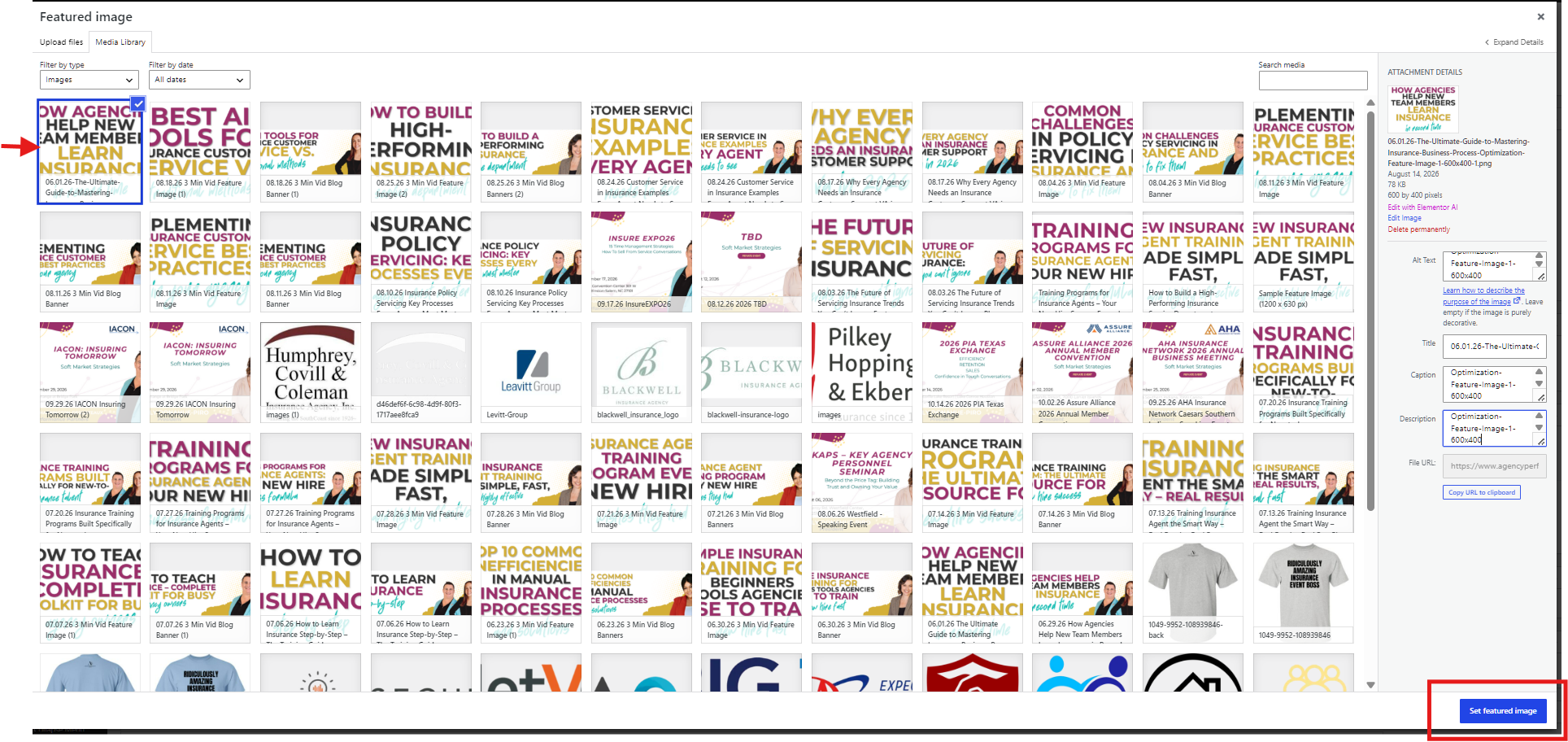
In the Featured Image sidebar section, click Replace Image or Remove Featured Image.
-
Upload the new 1200 × 630 px image created in Canva.
-
Enter descriptive, keyword-focused Alt Text in the attachment details.
-
Click Set featured image.
-
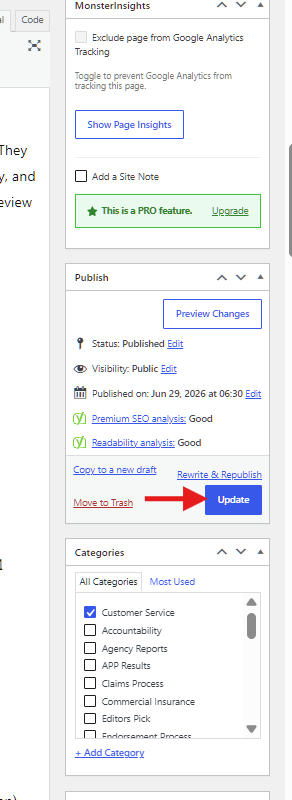
Click Update at the top right of the page to save all changes.
Before marking the optimization task complete for a blog post, verify:
- [ ] Page Banner reflects 1200 × 300 px in the media edit screen.
- [ ] Featured Image is replaced with the newly generated 1200 × 630 px Canva version.
- [ ] Image file size is compressed under 150–200 KB.
- [ ] Alt text is filled out for both images.
- [ ] Page has been saved/published and visual layout verified on live preview.