![709081_APP-Logo White_042920-2.png]](https://knowledge.agencyperformancepartners.com/hs-fs/hubfs/709081_APP-Logo%20White_042920-2.png?width=50&height=50&name=709081_APP-Logo%20White_042920-2.png)
Desired Outcome
- Every platform (Facebook, X, LinkedIn, YouTube, APP Logo) has the correct size version of the monthly creative
- All designs look consistent and on-brand
- Text and visuals are clear, readable, and properly spaced
- Final assets are polished and ready to publish without additional edits
Unacceptable Actions
- Using the wrong month’s creative
- Resizing without copying the correct original design
- Breaking alignment, spacing, or readability
- Stretching or distorting images
- Forgetting to adjust layouts per platform size
- Submitting unpolished or messy designs
Step-by-Step Process (Easy Guide)
1. Find the Correct Monthly Master Design
- Open Canva
- Go to:
Home Page Slider → (Current Month) → Course
👉 Everything must come from this design.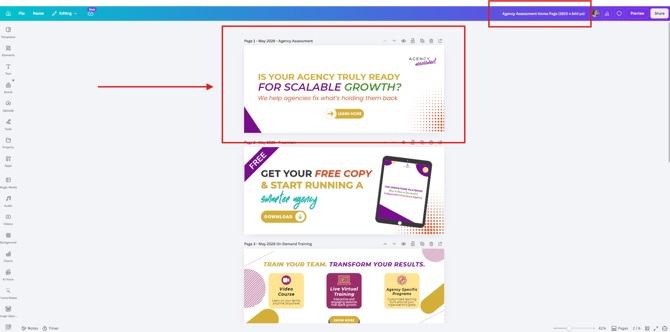
2. Understand What You Are Creating
You will be making versions of the SAME design for:
👉 Think of it like this:
Same design → different sizes for different platforms
3. Create Copies for Each Platform
For each platform:
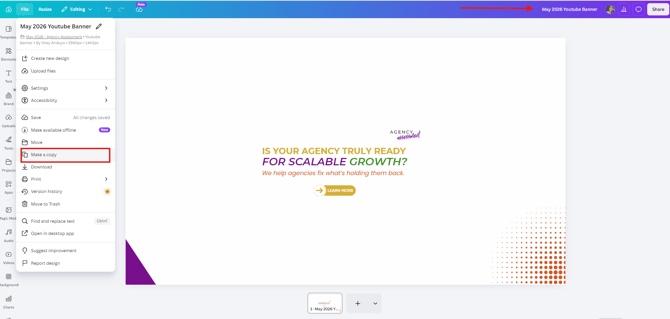
- Open the design from previous month
- Click “Make a Copy”
- Rename each file clearly: (Sample's below)
- May 2026 Facebook Cover
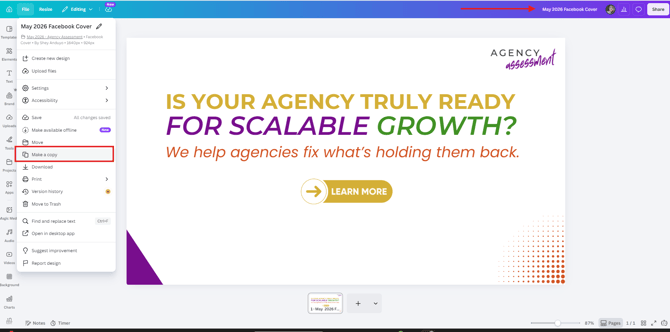
- May 2026 Twitter Header
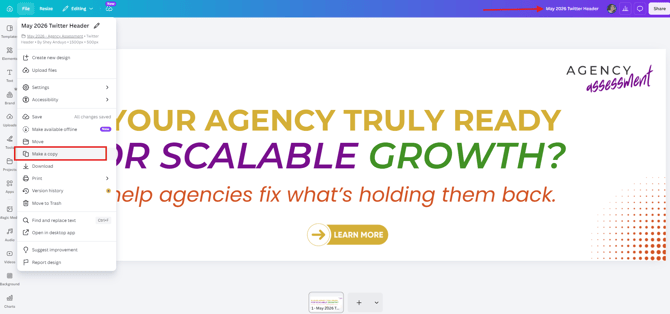
- May 2026 LinkedIn Cover
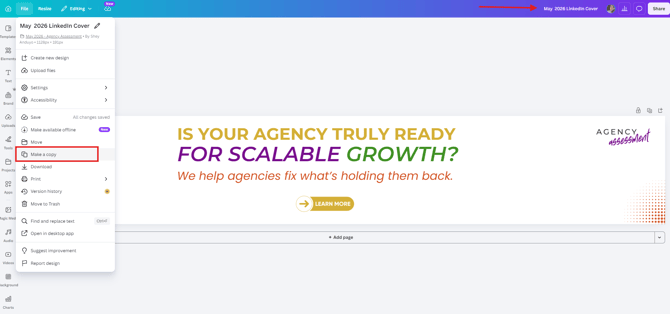
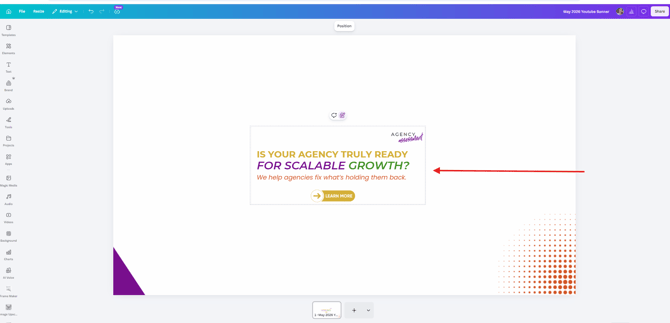
- May 2026 Youtube Banner
- May 2026 Logo Design (For the logo, please duplicate the previous )
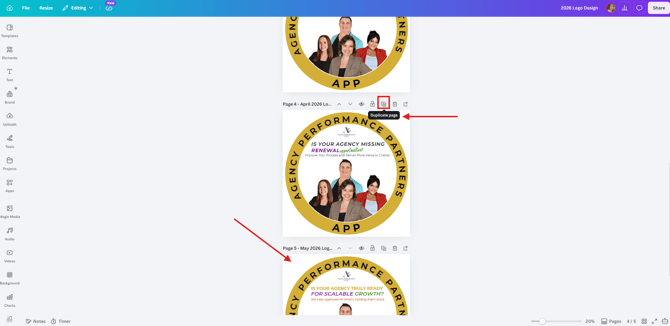
- May 2026 Facebook Cover
4. Copy the Design Into Each Version
Now:
- Go back to the master design
- Select EVERYTHING:
- Text
- Images
- Icons
- Shapes
- Layout
- Press Copy
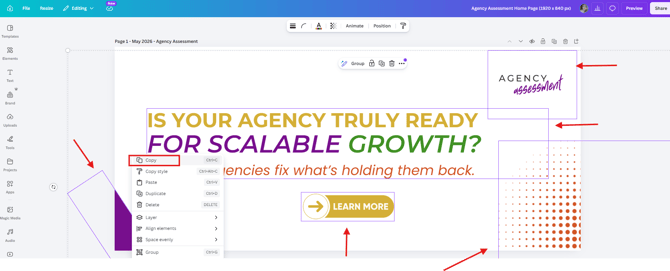
- Paste into each platform version
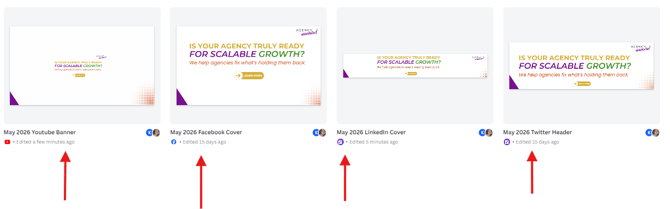
👉 This ensures all designs stay consistent
5. Resize Each Design Properly
Now adjust each one based on platform size.
What you do here:
- Use Canva’s resize tools (or adjust manually if needed)
- Make sure each version fits its platform
Important adjustments:
- Text must NOT be cut off
- Images must not be stretched
- Everything must be centered or balanced
- Keep enough space around elements (don’t overcrowd)
6. Fix Layout and Make It Look Clean
After resizing:
Check each design carefully:
- Is text easy to read?
- Are elements aligned properly?
- Is spacing balanced?
- Does it look clean and professional?
👉 If something feels “off,” adjust spacing or size until it looks right.
7. Create the APP Logo Version
For the APP Logo:
- Go back to the same monthly course design
- Copy key visual elements only (not everything)
- Simplify the design:
- Remove extra text if needed
- Keep it clean and recognizable
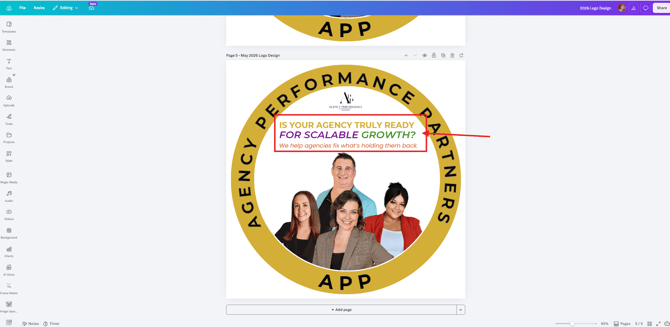
- Make sure it still represents the brand clearly
👉 The logo should be simple, clear, and strong at small size
8. Final Check (Very Important)
Before finishing, review all versions:
- FB version looks correct
- X version is properly formatted
- LinkedIn version is clean and readable
- YouTube version is centered and clear
- APP Logo is simple and recognizable
- All versions match the same month and course
Final Checklist
- Used correct month’s Home Page Slider Course design
- Created copies for all platforms
- Copied full design into each version
- Resized properly per platform
- Adjusted spacing and layout
- Created clean APP Logo version
- All assets are consistent and polished
Key Reminder
👉 Always start from the current month’s Course creative in Canva.
👉 Never redesign from scratch or use old files.
👉 Your goal is same message, different platform sizes, same quality everywhere.