![709081_APP-Logo White_042920-2.png]](https://knowledge.agencyperformancepartners.com/hs-fs/hubfs/709081_APP-Logo%20White_042920-2.png?width=50&height=50&name=709081_APP-Logo%20White_042920-2.png)
Desired Outcome
-
All monthly CTAs are accurately updated with the correct graphics, links, alt text, and campaign tags.
-
Home page slider buttons are updated with transparent graphics and correctly embedded.
-
Marketing campaigns reflect the latest month’s CTAs without errors or duplication.
-
Communication with David is complete for slider creation, including Canva links and embed codes.
Unacceptable Actions
-
Uploading CTAs with incorrect or outdated graphics.
-
Skipping renaming steps that include the month or the word “button,” leading to file mix-ups.
-
Forgetting to update alt text, links, or campaigns.
-
Sending incomplete or missing information to David for the home page slider.
Checklist: Step-by-Step CTA Setup
1. Download & Prepare Graphics
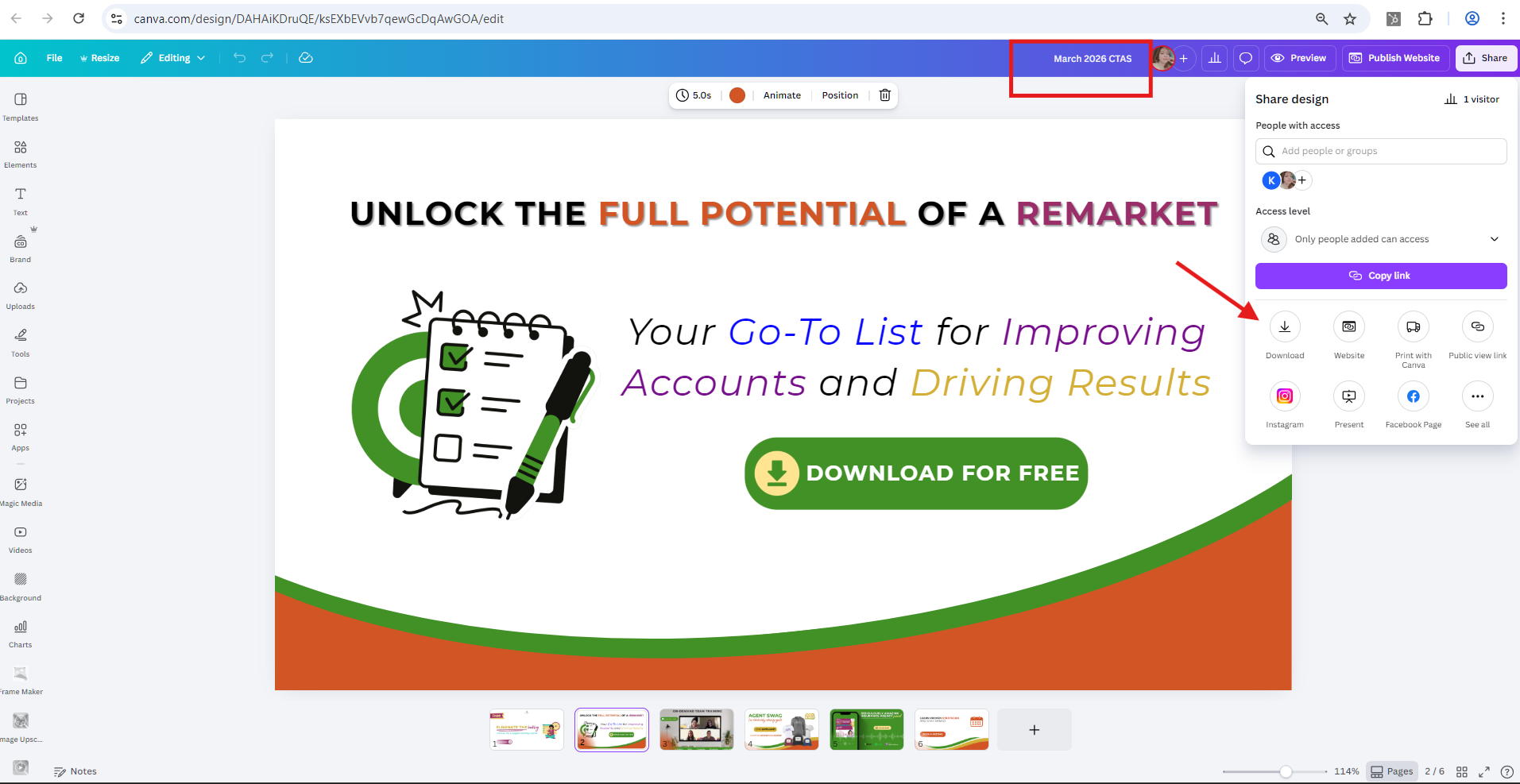
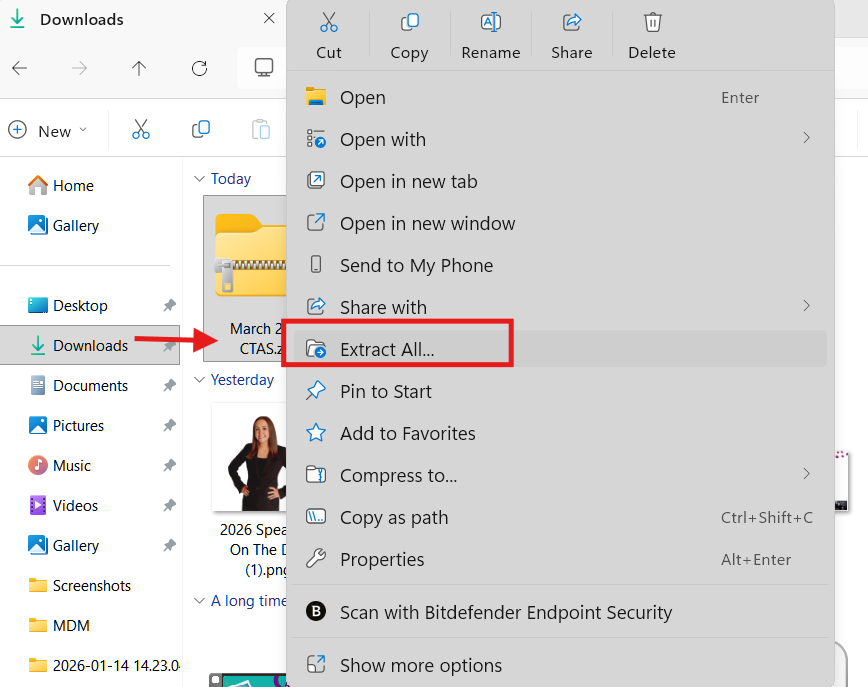
2. Upload CTA Graphics to HubSpot
-
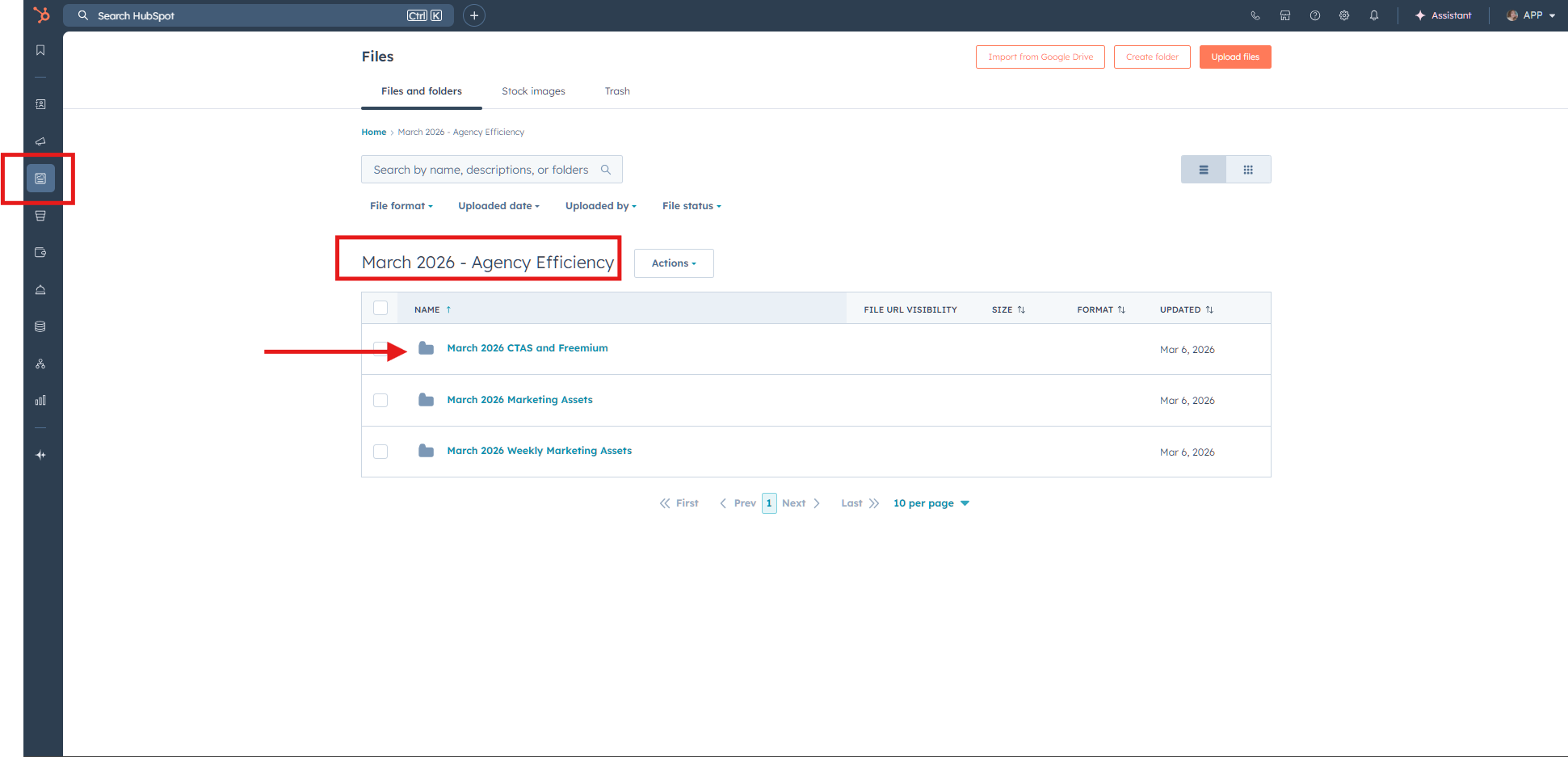
Go to HubSpot Files → (Month 2026) CTAs and Freemium
-
Upload all downloaded CTA graphics
3. Update HubSpot Legacy CTAs
-
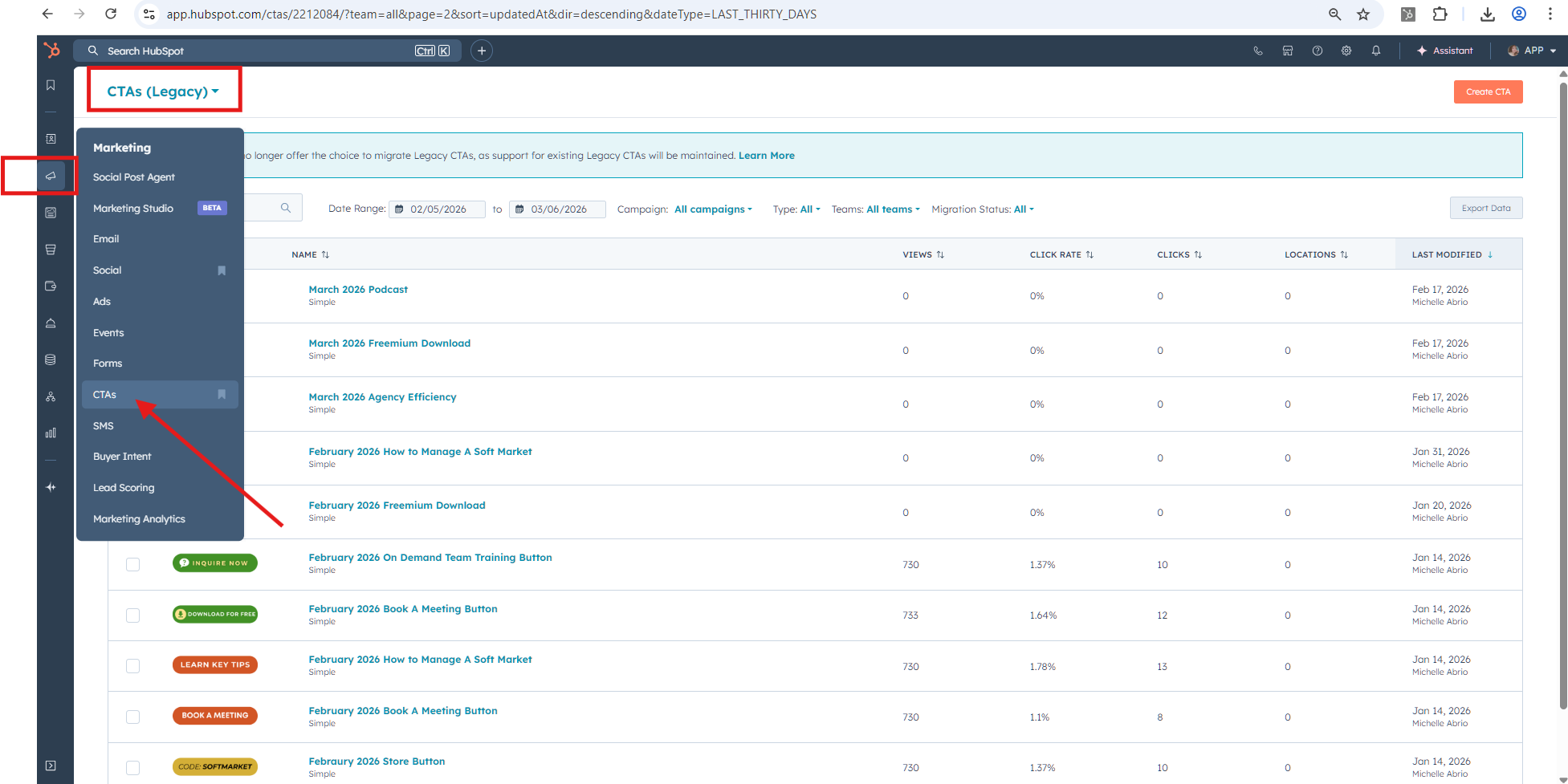
Go to HubSpot CTAs Legacy
-
Clone previous month’s CTAs
-
Rename CTAs → update month + remove “clone”
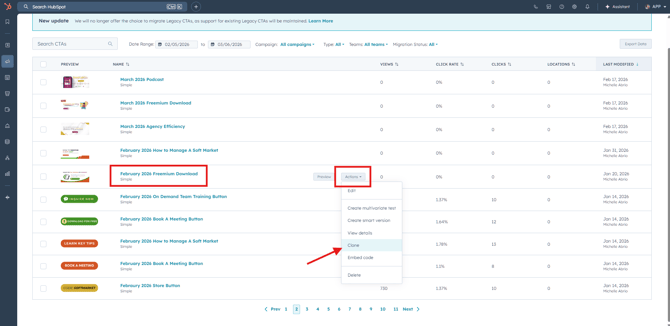
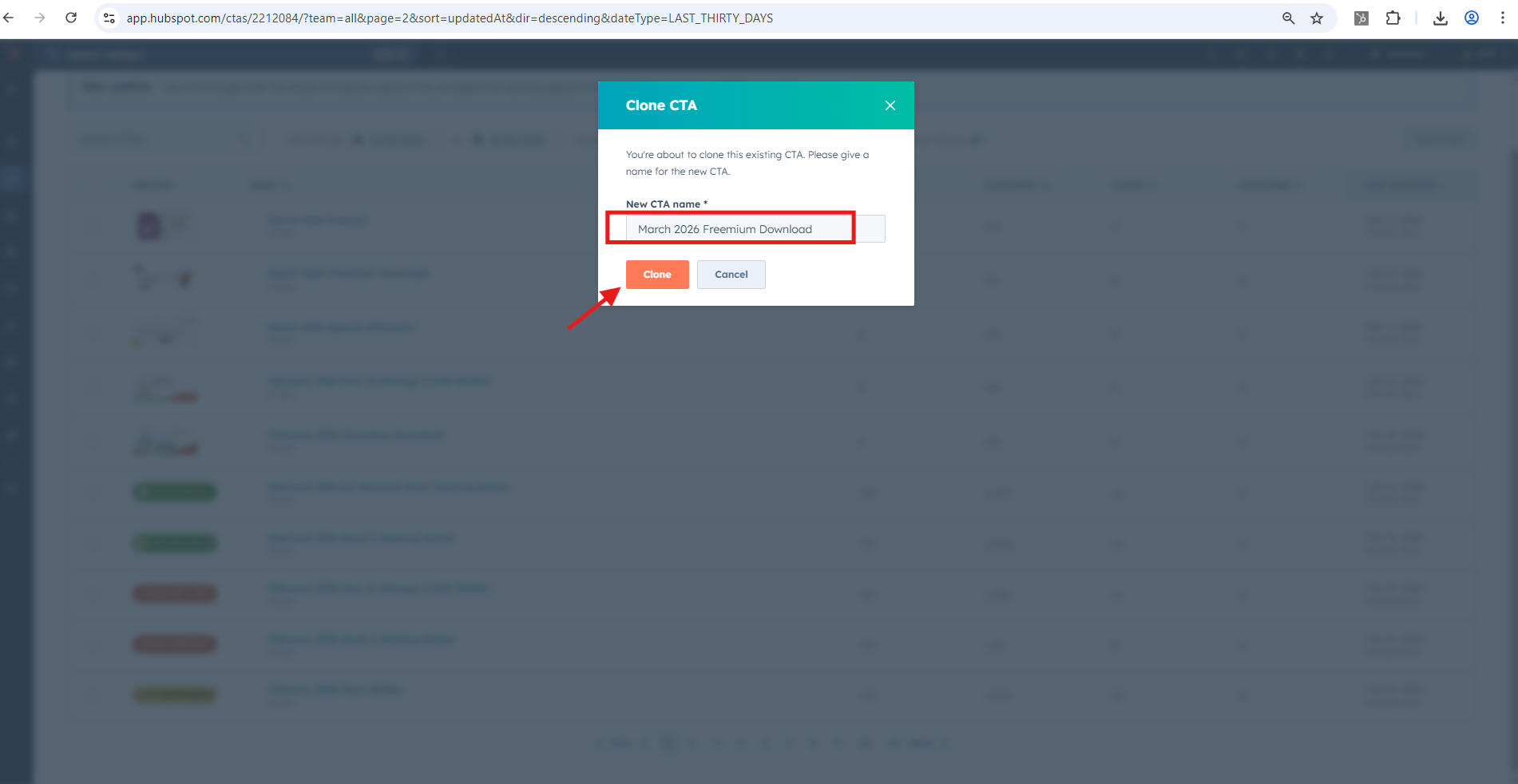
CTAs to Update (6 Total):
-
Freemium Download
-
Store
-
Course
-
On Demand Training (link always unchanged)
-
Book A Meeting (link always unchanged)
-
Podcast (link always unchanged)
-
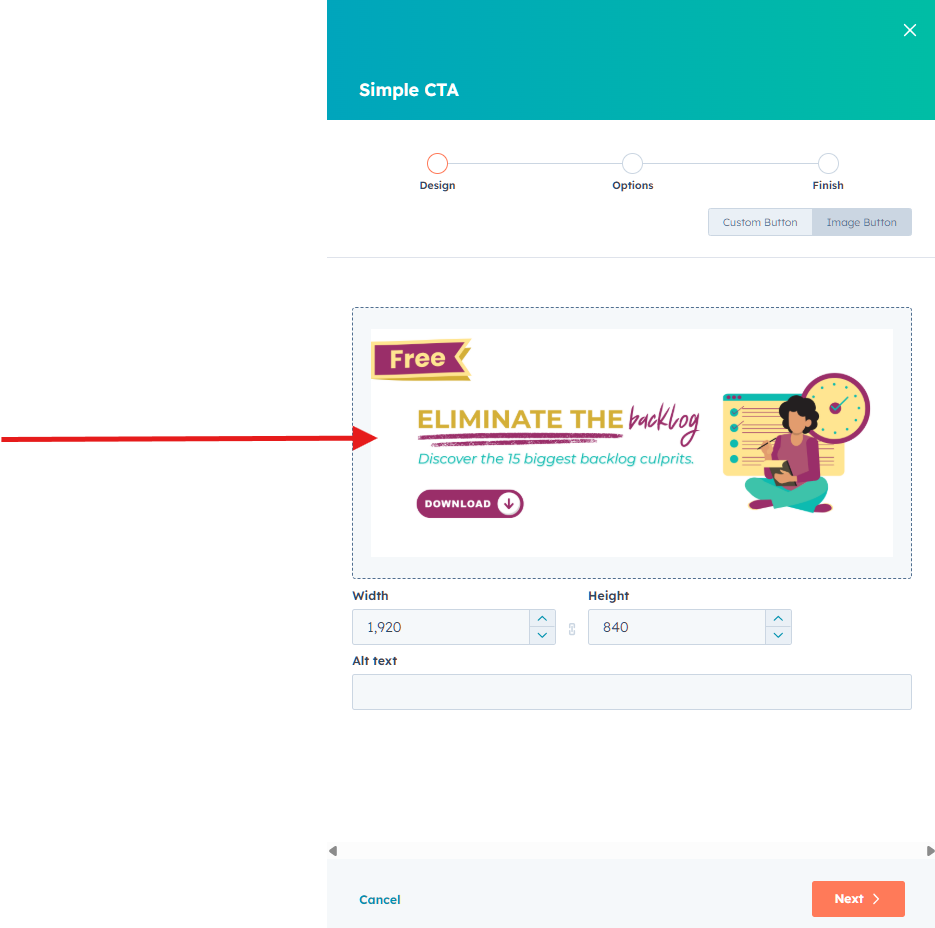
Replace image with downloaded version
-
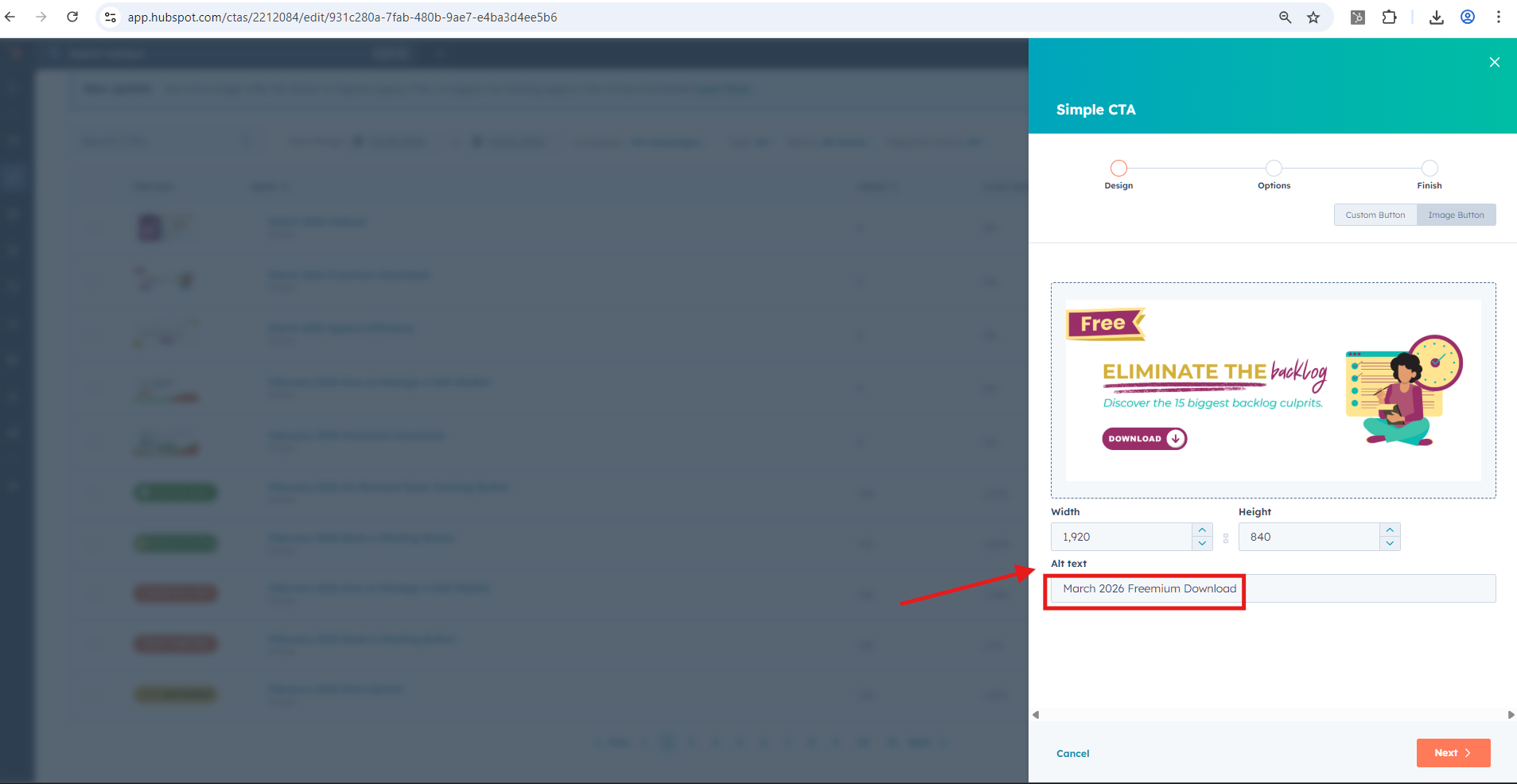
Update alt text
-
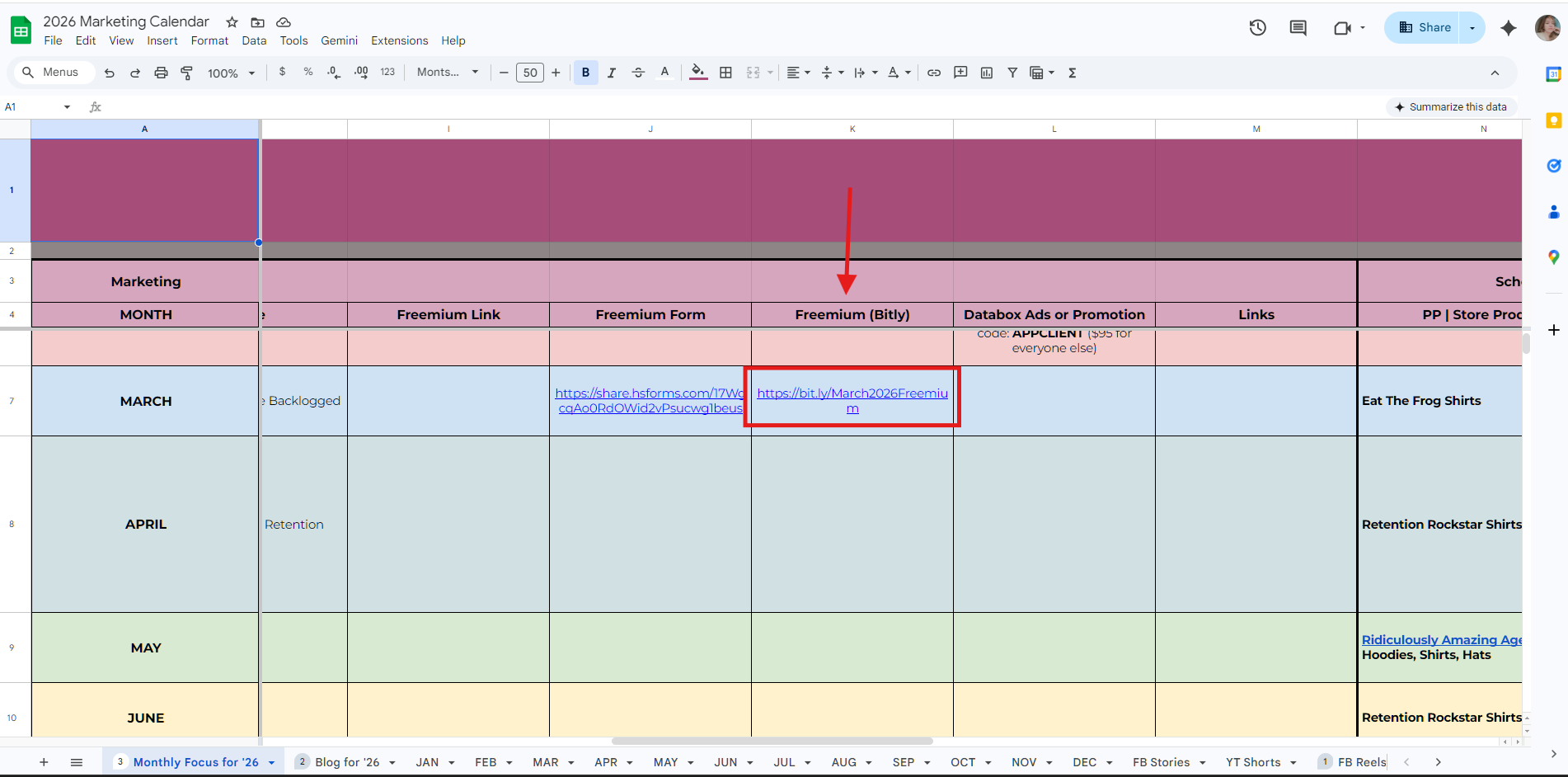
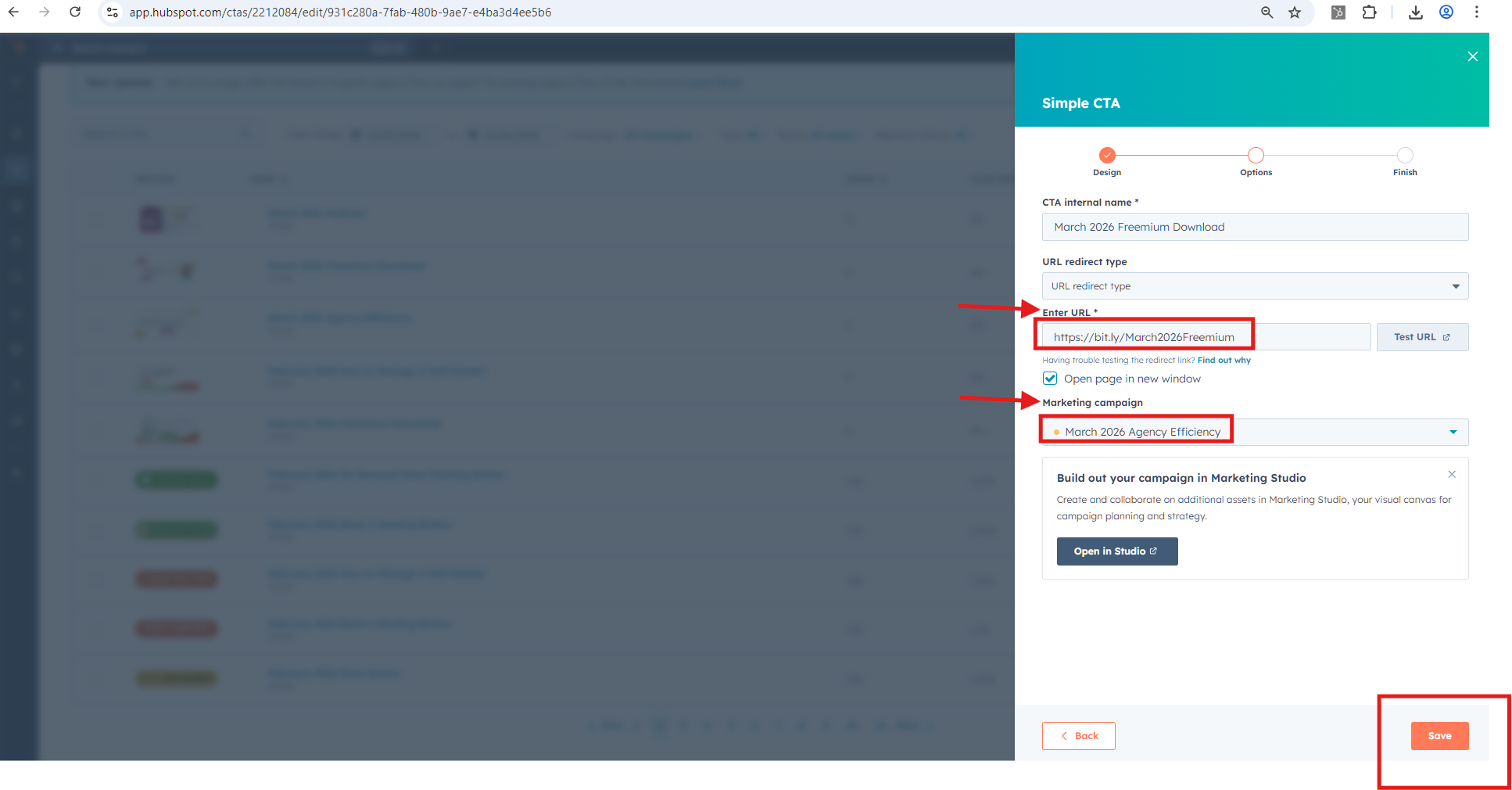
Click Next → Enter URL link (check Marketing Calendar)
-
Change campaign → Save
4. Update Home Page Slider Buttons
-
Download (Month 2026 – Home Page Slider Button) in Canva with transparent background

-
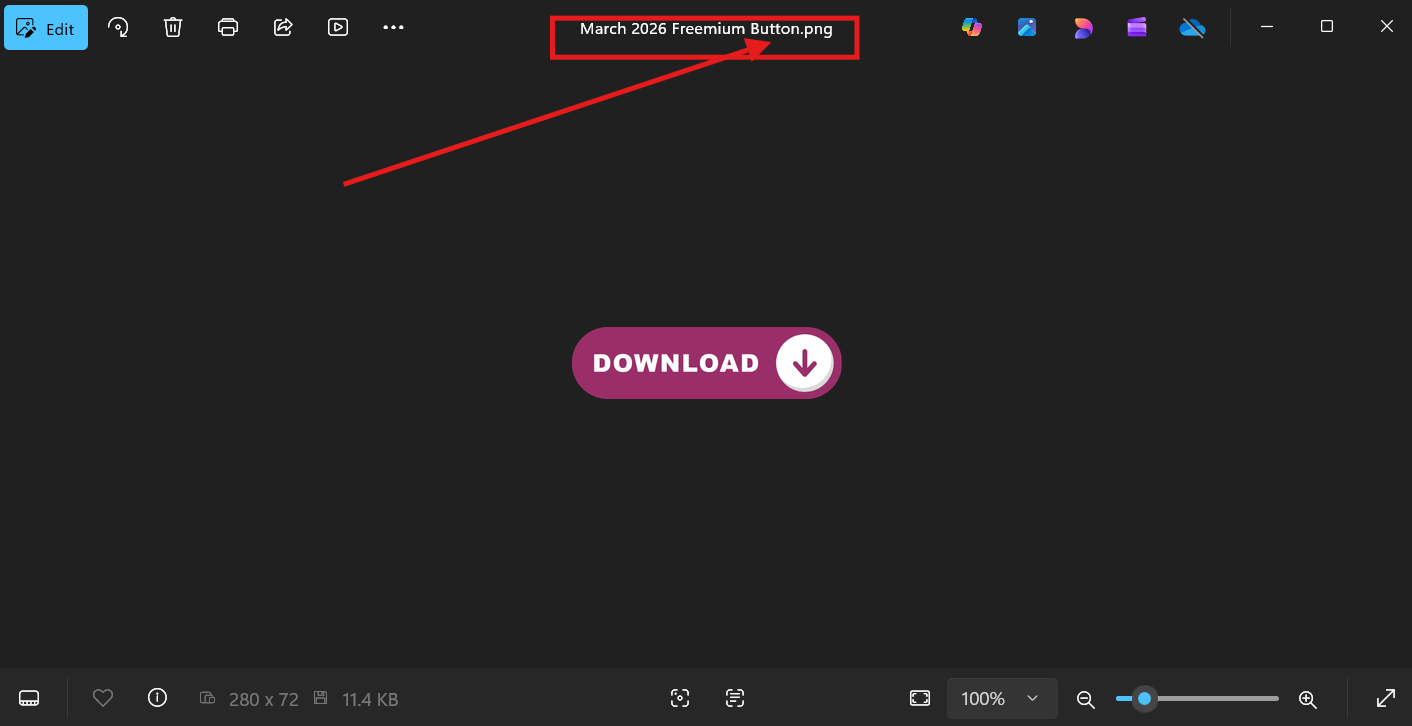
Rename graphics → include “button” in name
-
Upload to same HubSpot file folder
-
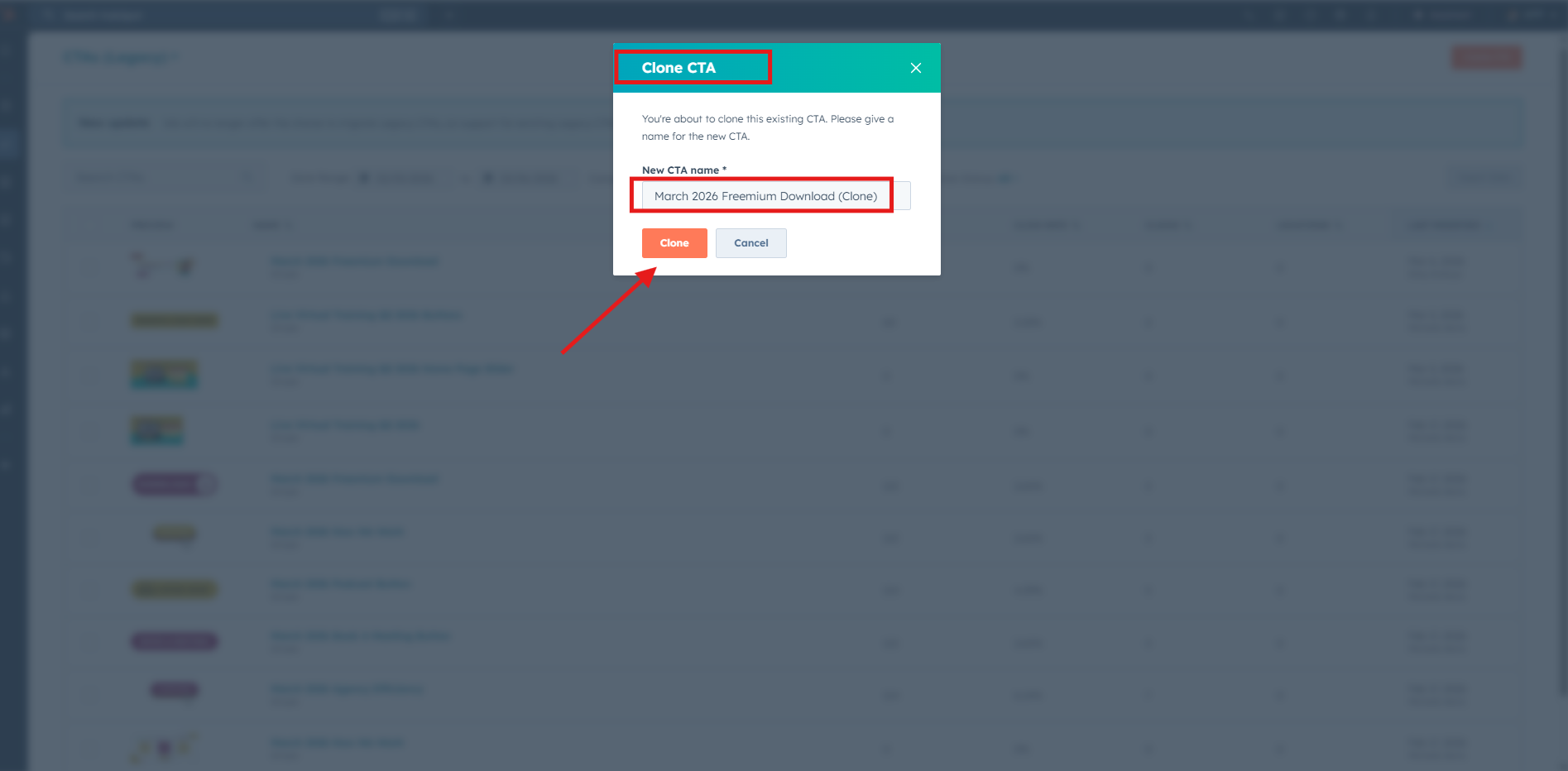
Clone previous buttons → rename with month
-
Replace graphic → update alt text → click Next →
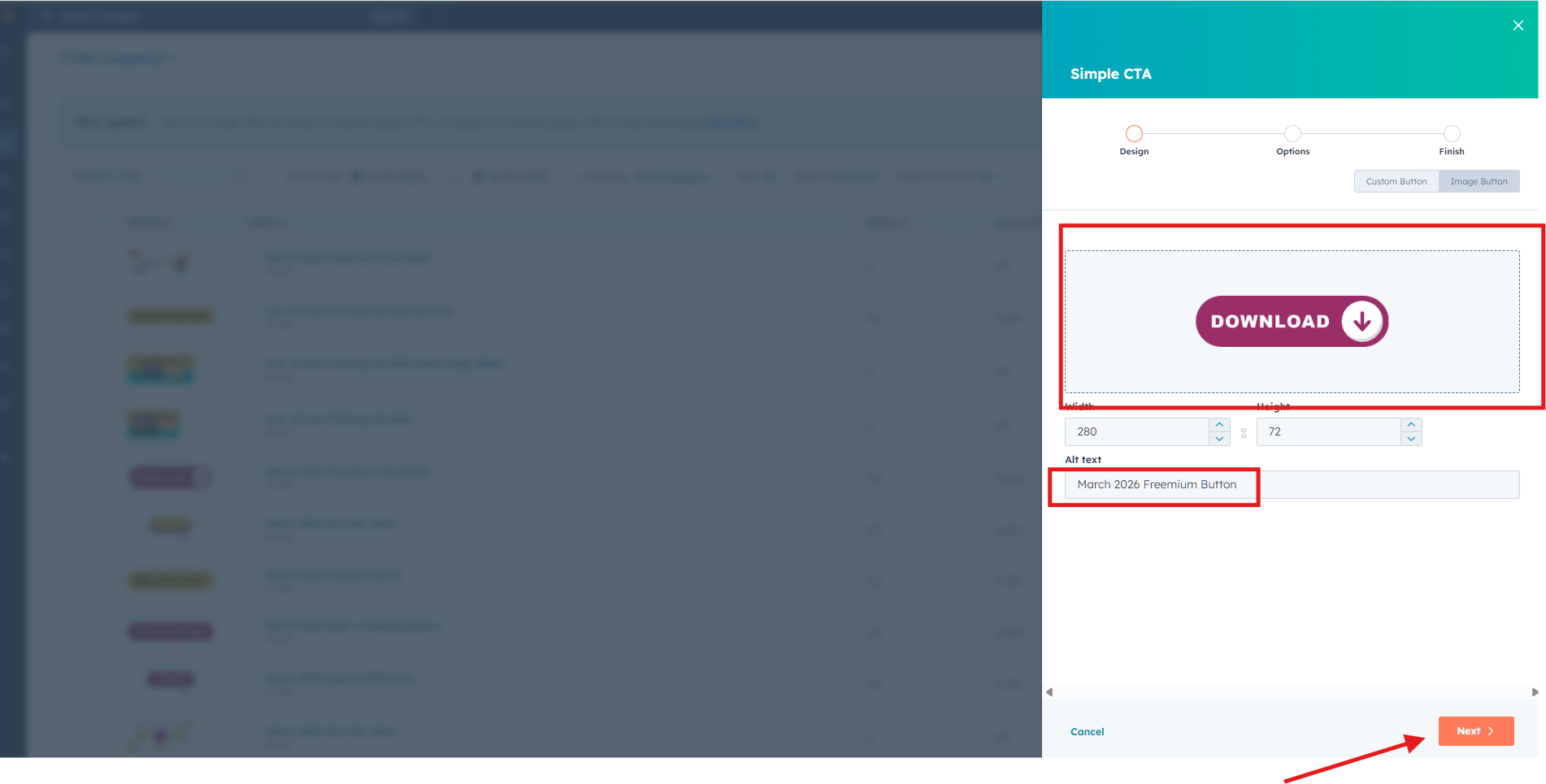 enter URL link → update campaign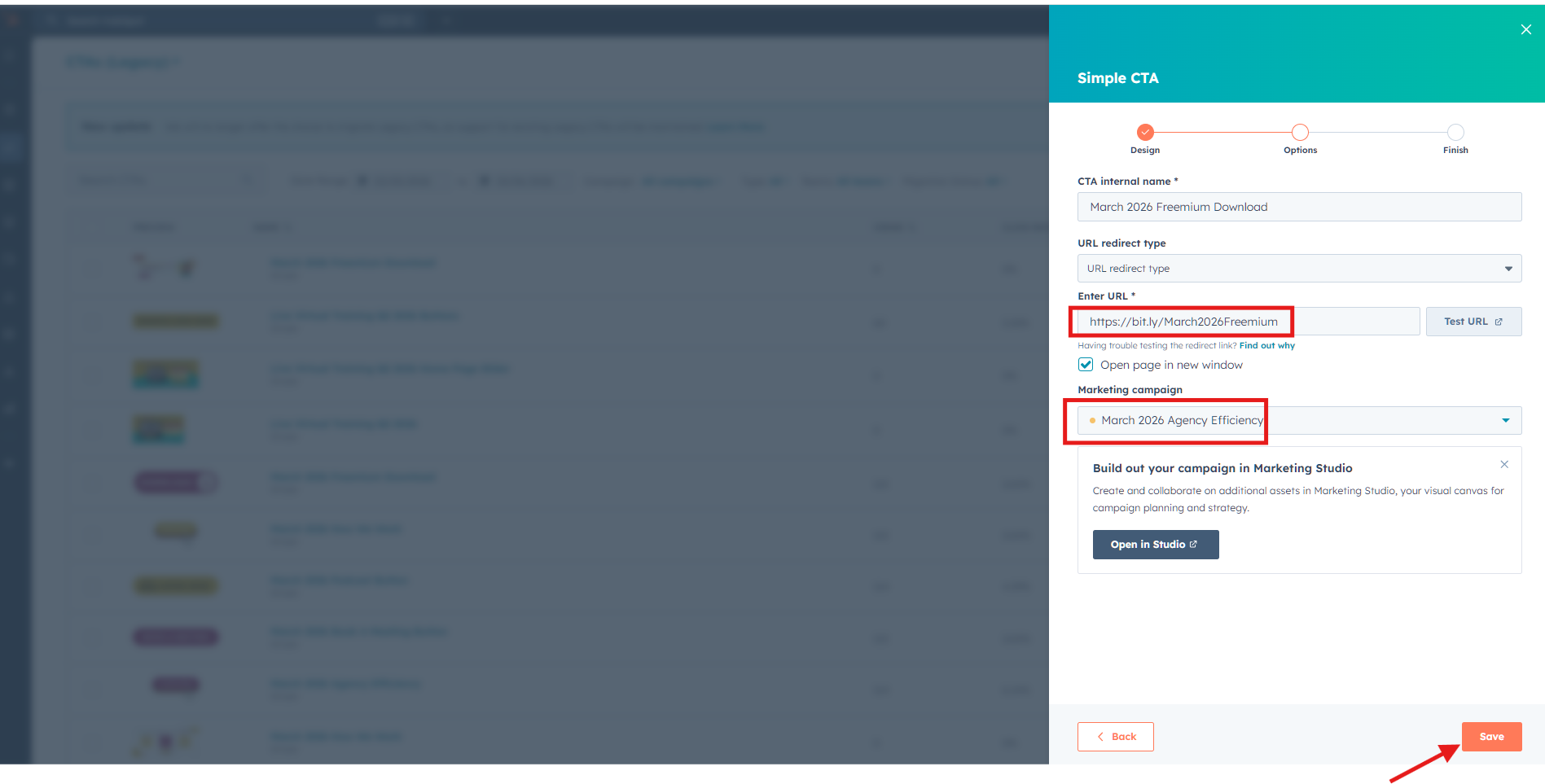
Buttons to Update (6 Total):
-
Freemium Download
-
Store/Swag
-
Course
-
On Demand Training (link always unchanged)
-
Book A Meeting (link always unchanged)
-
Podcast (link always unchanged)
5. Send Info to David for Home Page Slider
-
Email David Wolter <david@customvs.com>
-
Include:
-
Canva links for CTA graphics
-
Embed code for each CTA button:
-
Right-click CTA → Actions → Embed code → Copy (Ctrl+C)

-
-
-
Confirm all CTA buttons and graphics included
6. Final Review
-
Check links → match Marketing Calendar
-
Verify alt text → descriptive and accurate
-
Ensure campaign tags → current month
-
Confirm transparent graphics used for buttons
-
Double-check file names → month + “button”
✅ Tip: Keep this checklist handy each month to prevent mistakes and ensure consistency.