![709081_APP-Logo White_042920-2.png]](https://knowledge.agencyperformancepartners.com/hs-fs/hubfs/709081_APP-Logo%20White_042920-2.png?width=50&height=50&name=709081_APP-Logo%20White_042920-2.png)
Step 1: Log in to Databox. 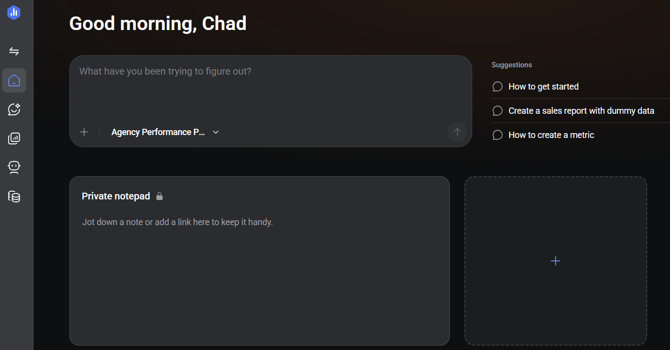
Step 2: On the left-hand navigation bar, go to Reporting and Analytics. 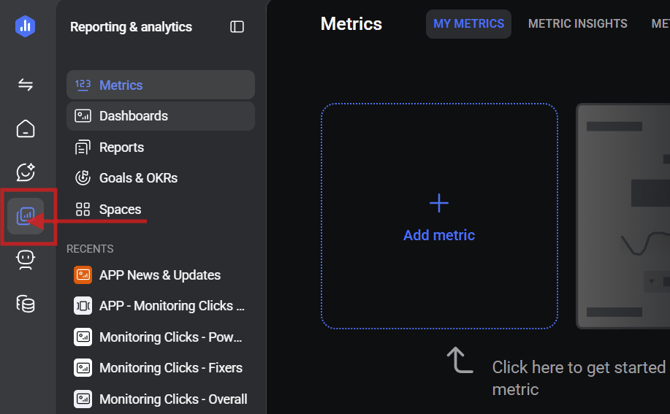
Step 3: Click Dashboards. 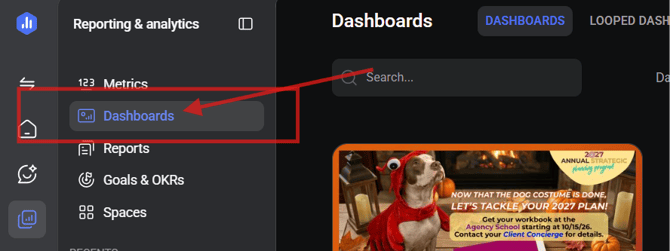
Step 4: Edit the APP News & Updates databoard under the Account Templates section. 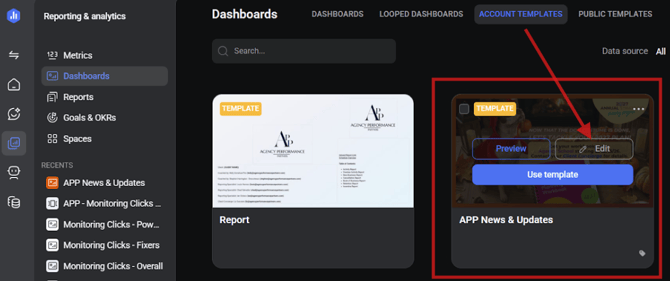
Step 5: Upload the KDP-approved marketing graphics and insert the link from our website in the datablock editor. 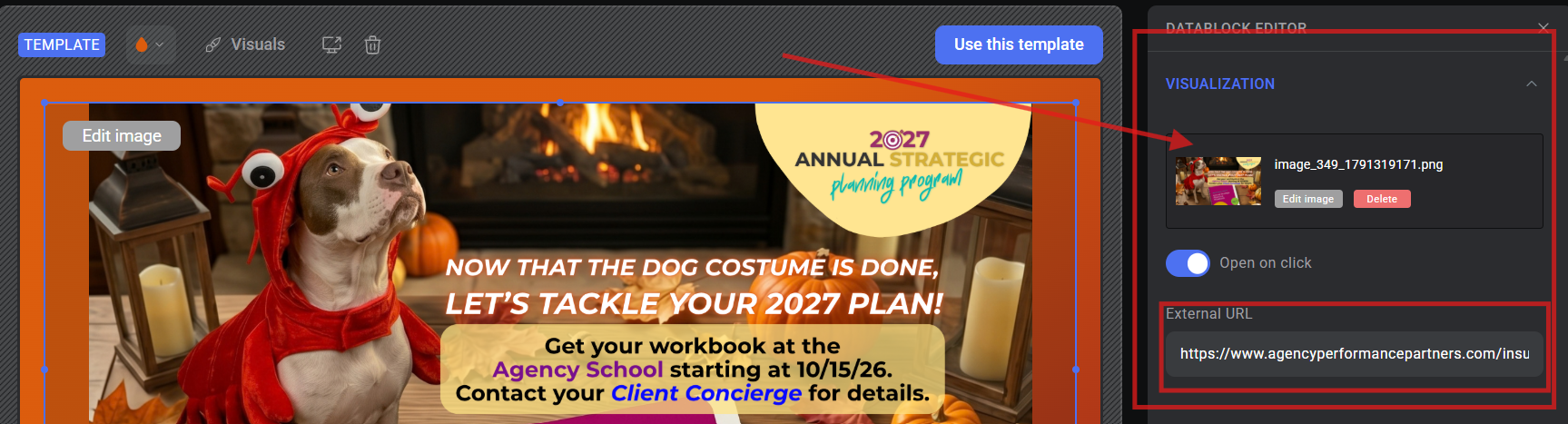
Step 6: In the upper-right corner, click Update dashboards. 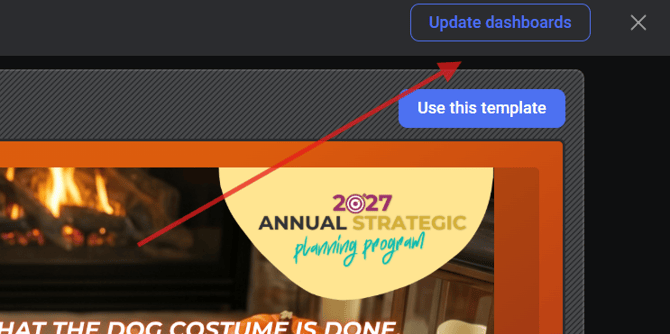
Step 7: Select all active clients, then click Save.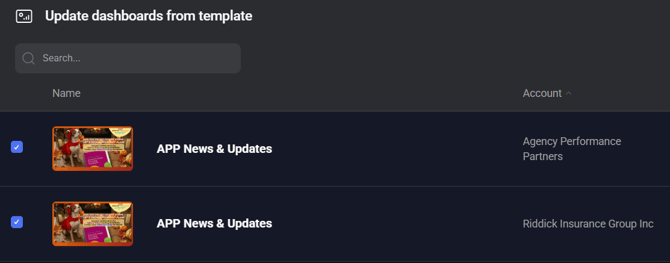
Step 8: Reach out to the reporting team to confirm if the changes apply across all clients.
Changes made to template databoards directly overwrite existing layouts for all selected active clients. Ensure all updates are final before clicking Save.