![709081_APP-Logo White_042920-2.png]](https://knowledge.agencyperformancepartners.com/hs-fs/hubfs/709081_APP-Logo%20White_042920-2.png?width=50&height=50&name=709081_APP-Logo%20White_042920-2.png)
🎯 Mission
To use email marketing to consistently share timely updates like new courses, blogs, podcasts, and resources with our contacts, providing clear value, keeping them engaged, informed, and connected with our brand.
✅ Desired Outcome
-
Emails are well-crafted, on-brand, and error-free
-
Campaigns reach the right audience through proper segmentation
-
Email workflows and automations run smoothly and reliably
-
Open rates, click-through rates, and conversions are tracked and improving
-
Contact lists and data are clean, organized, and actionable
-
Email marketing contributes directly to revenue growth and customer retention
🚫 Unacceptable Actions
-
Sending emails with broken links, typos, or formatting errors
-
Using outdated or incorrect contact lists
-
Ignoring proper audience segmentation
-
Failing to test emails or workflows before sending
-
Not tracking or reviewing email performance metrics
-
Over-emailing or sending irrelevant content to contacts
-
Ignoring brand voice or messaging in emails
Leaving automations or workflows unchecked or broke
🧭 Step-by-Step Instructions
1. Go To Marketing -> Email
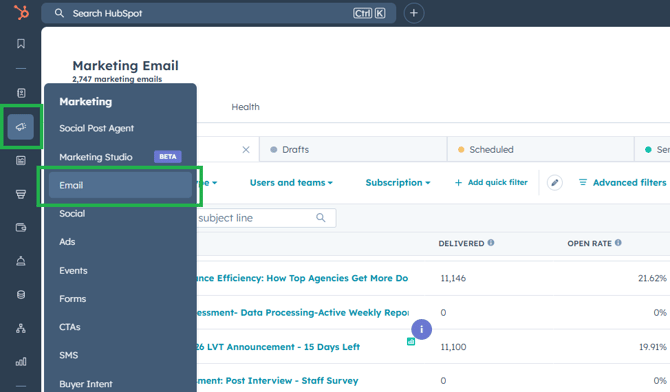
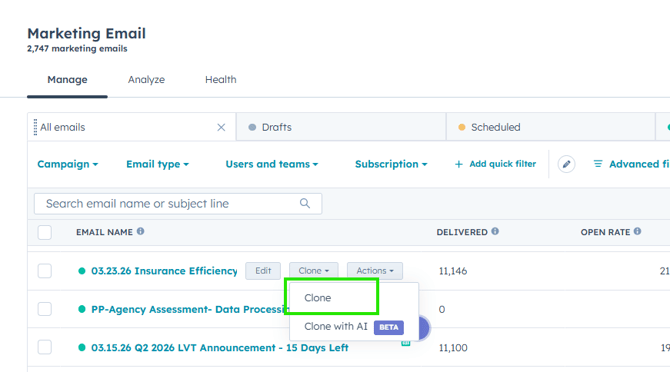
2. Clone the Email from Previous Month / Week
Identify the Email Marketing for the Blogs - Ex. 00.00.00 Name of the Blog
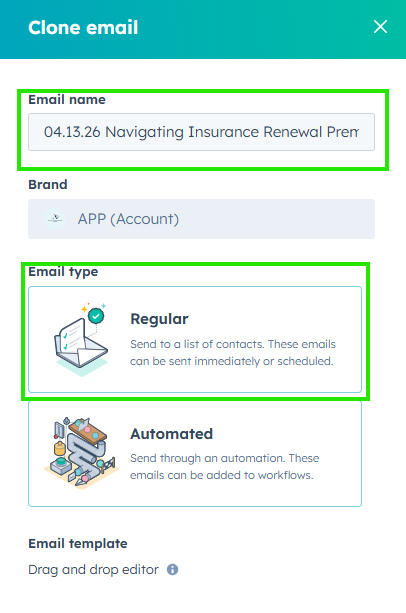
3. Change the Email Name and Select Email Type Regular, then Clone.
Title: MM.DD.YY Blog Name
Ex. 04.13.26 Navigating Insurance Renewal Premium Fluctuations for Better Agency Retention

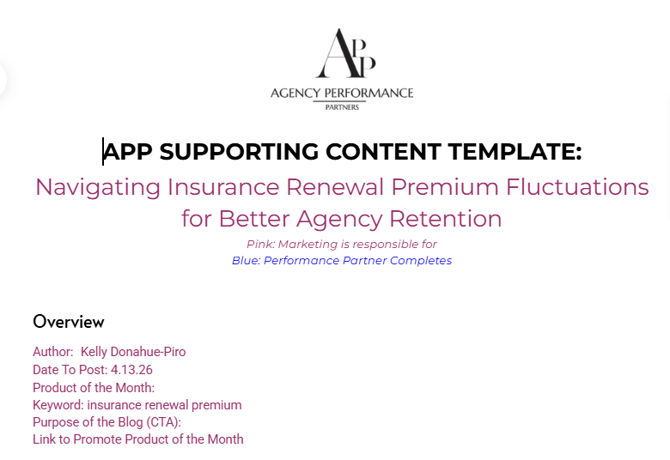
4. Open the Blog Template Document as a Reference for the Email Marketing Content or Body.
5. Open the Marketing AI Prompt
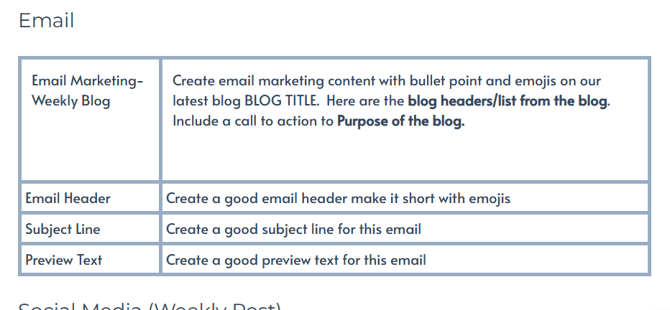
6. Open ChatGPT copy and paste the AI Prompt and the Blog Content add Header, Preview Text, and Subject Line
Create email marketing content with bullet point and emojis on our latest blog Navigating Insurance Renewal Premium Fluctuations for Better Agency Retention. Here are the blog headers/list from the blog. Include a call to action to Purpose of the blog.
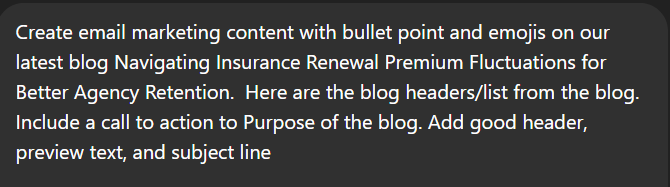
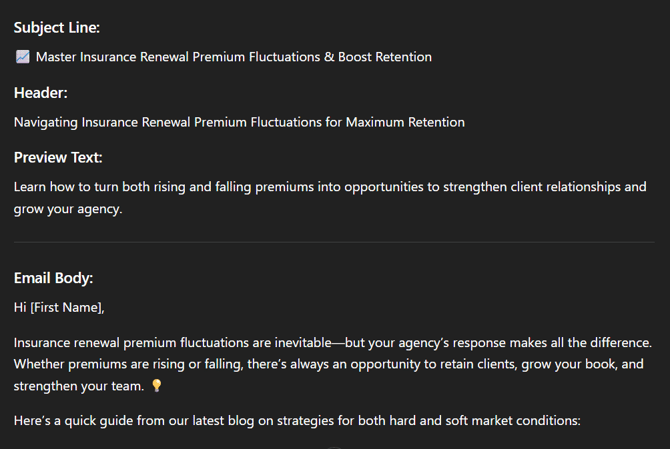
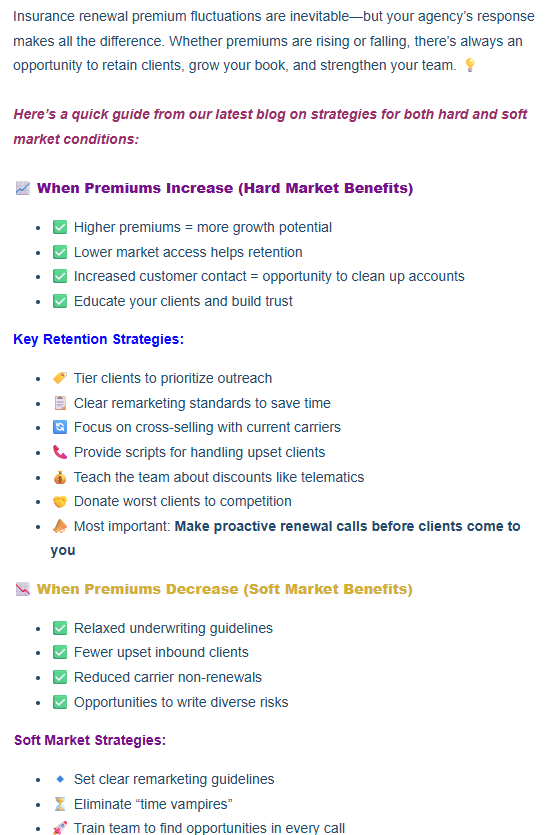
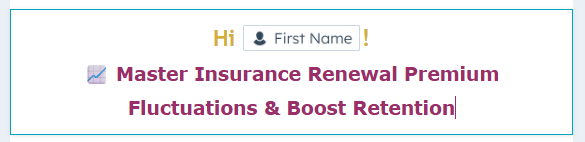
7. Paste it to the Hubspot Marketing Email and Edit the colors of important words and headers.
Body:
Header
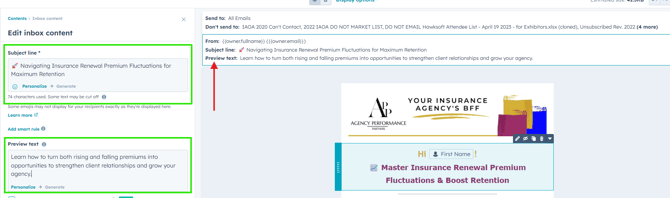
Subject Line and Preview Text
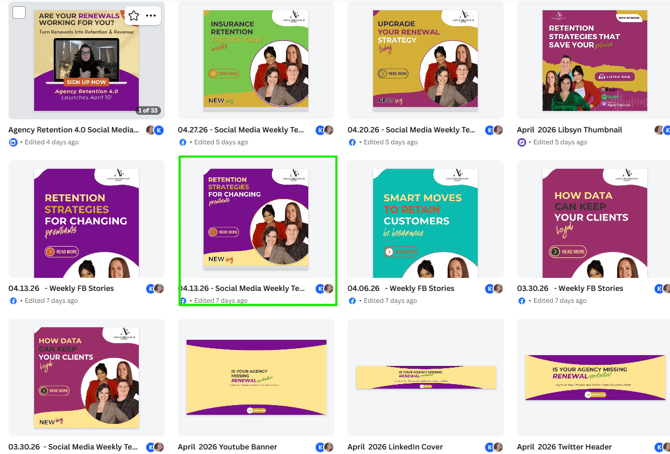
8. Download the Blog Graphics
Find the Canva File
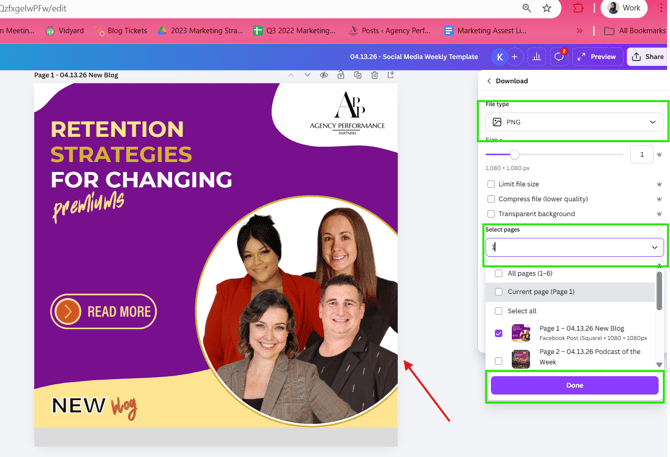
Click Download
Select: File Type: PNG
Select: Page 1
Click Save Then Download
9. Upload the Graphics
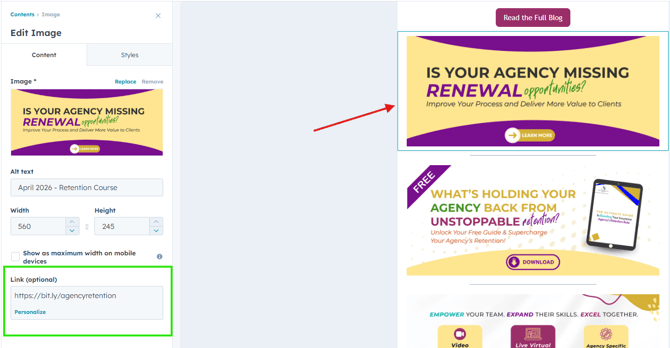
Click the Image
Change the Link
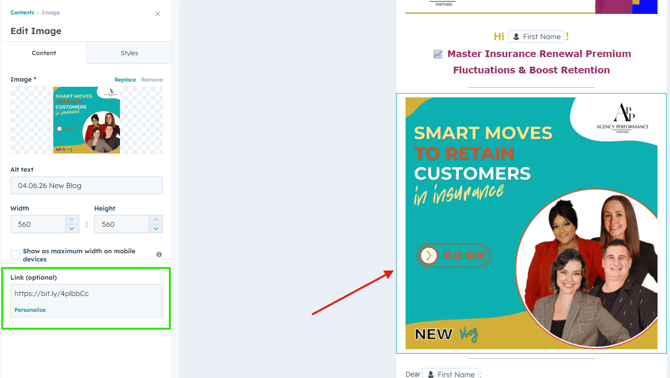
Replace Image
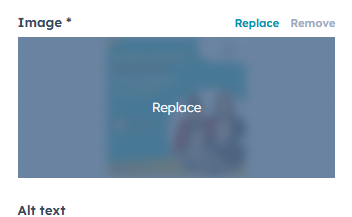
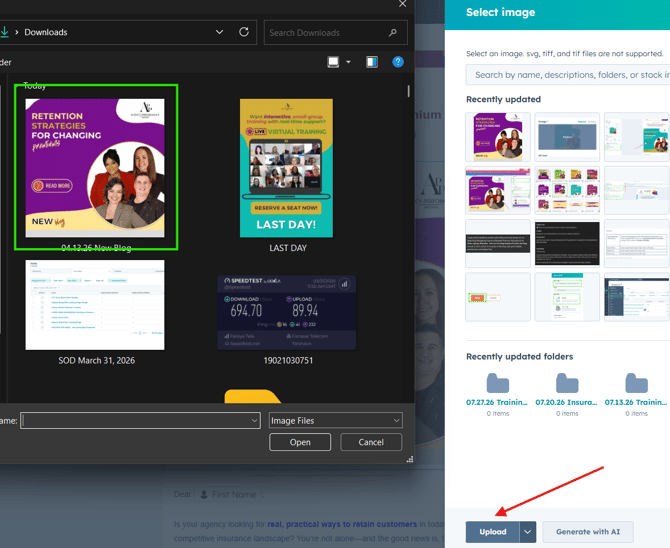
Click Upload
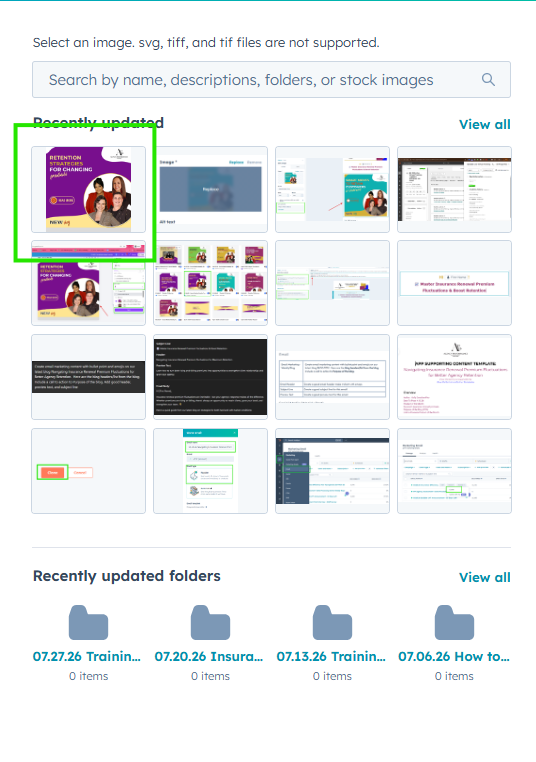
Select Image of the Blog
Select the Image
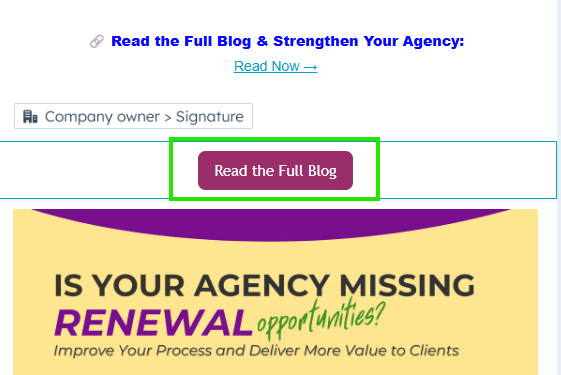
Add Link to Read the Full Blog
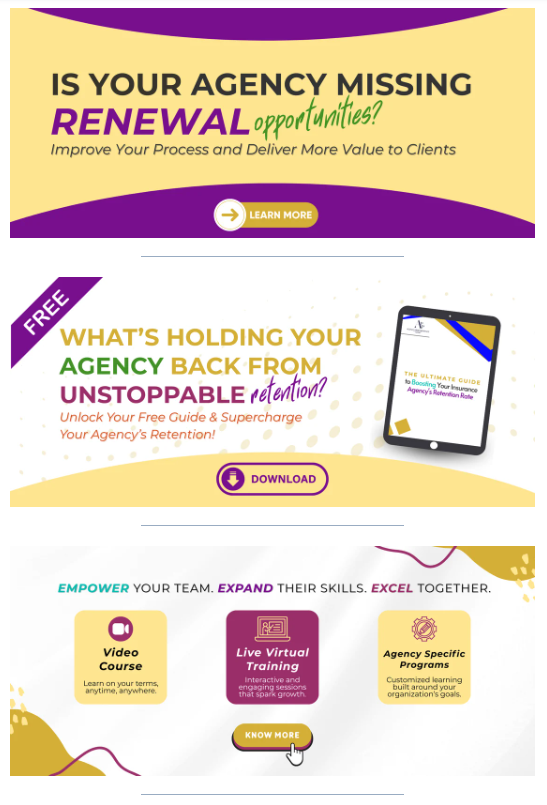
Change CTA Images
Add Link to Associate the Website
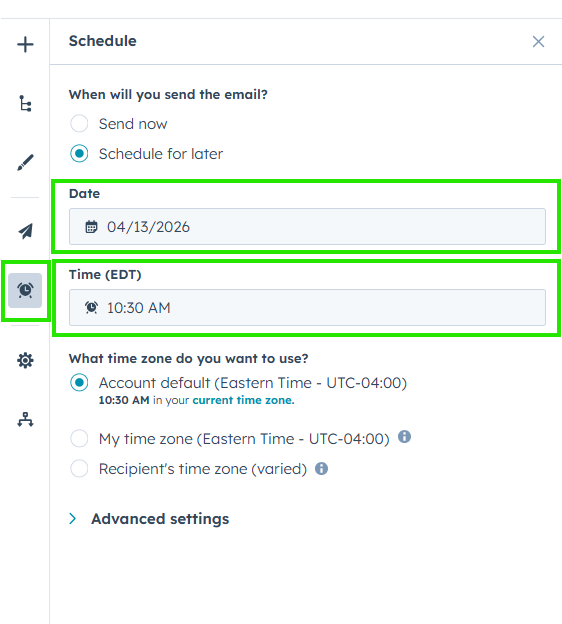
10. Schedule it for later every Monday at 10:30 AM
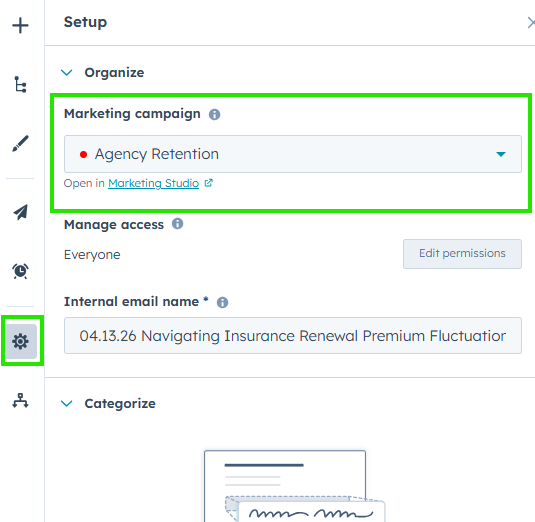
11. Change the Campaign to Monthly Assigned Campaign
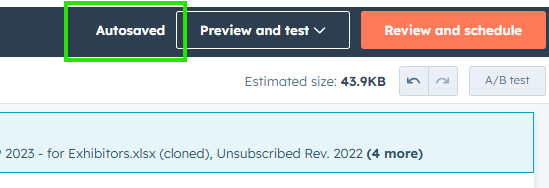
12. Auto Save
13. Task the editor to edit it
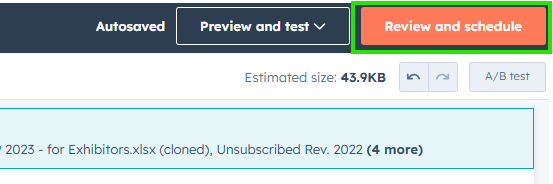
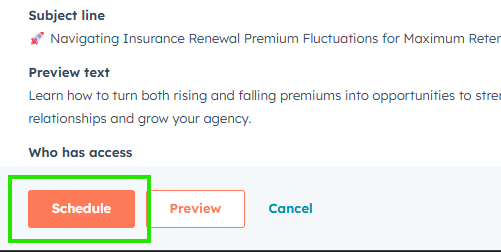
14. When the editor send it back you can schedule it
Video:
